Why Alexa Feels More Frustrating Than Helpful
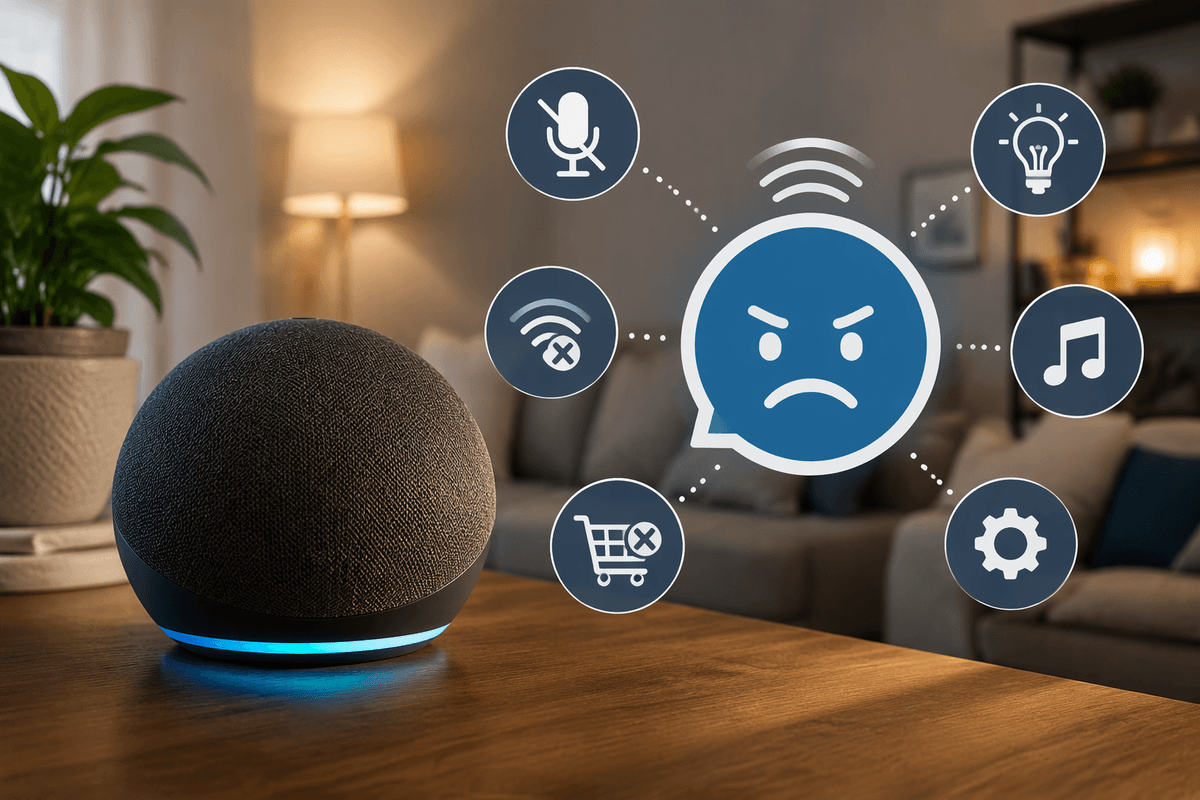
Alexa often feels frustrating when a simple request produces an unexpected result: a timer starts late, music plays in the wrong room, or a smart light ignores the command. These problems usually come from several small factors rather than one serious failure. Alexa may mishear a phrase, use the wrong household profile, lose contact with a device, or interpret a broad request differently than you intended.
There is also a trade-off between convenience and control. Features such as personalized shopping, proactive suggestions, voice purchasing, and wake-word detection can save time, but they may also create interruptions or privacy concerns. The most effective fixes usually involve matching the solution to the annoyance—adjusting a setting for unwanted behavior, improving device placement for recognition problems, or checking the network when smart-home actions fail.
When Alexa Mishears Simple Commands
When Alexa misunderstands a simple command, start with the environment rather than repeating yourself louder. Echo devices can struggle with running water, television audio, fans, nearby conversations, or an Echo placed inside a cabinet. Move the device into an open area with its microphones unobstructed, and avoid placing it directly beside a speaker. If only one Echo has trouble, the problem is likely its location or microphone rather than your account.
Wording also matters. Use the device’s exact name, especially for lights, plugs, groups, and routines. “Turn on the kitchen lamp” is more reliable than “turn that light on” when several devices are nearby. Check the Alexa app’s voice history to see what Alexa thought you said; this often reveals a similar-sounding word, an incorrect device name, or the wrong profile. If recognition remains poor, review the language and voice-training settings, then try a short, consistent phrase. Be aware that renaming devices can improve recognition but may require updating routines and getting used to the new wording.
Stop Alexa From Interrupting or Waking Randomly
If Alexa responds when nobody called it, check the wake-word setting and the sounds around the Echo first. Television dialogue, phone conversations, and words that resemble “Alexa” can trigger the microphones, especially when the device sits near a TV or in a busy room. Changing the wake word to “Echo,” “Computer,” or another available option may reduce false activations. You can also press the microphone button to disable listening temporarily; the red indicator confirms that voice detection is off.
Unexpected interruptions may also come from reminders, timers, announcements, Drop In, or follow-up mode. Review these features in the Alexa app and disable anything you do not use. If Alexa starts answering after a request and keeps listening, turn off Follow-Up Mode for that device. Check communication settings if other household members can make announcements or use Drop In without warning. Moving the Echo farther from speakers can help, but it may make normal commands harder to hear. For bedrooms or quiet spaces, a scheduled Do Not Disturb period is often the most practical compromise: alerts are silenced during chosen hours while alarms and timers can still operate.
Fix Smart-Home Devices That Keep Going Offline
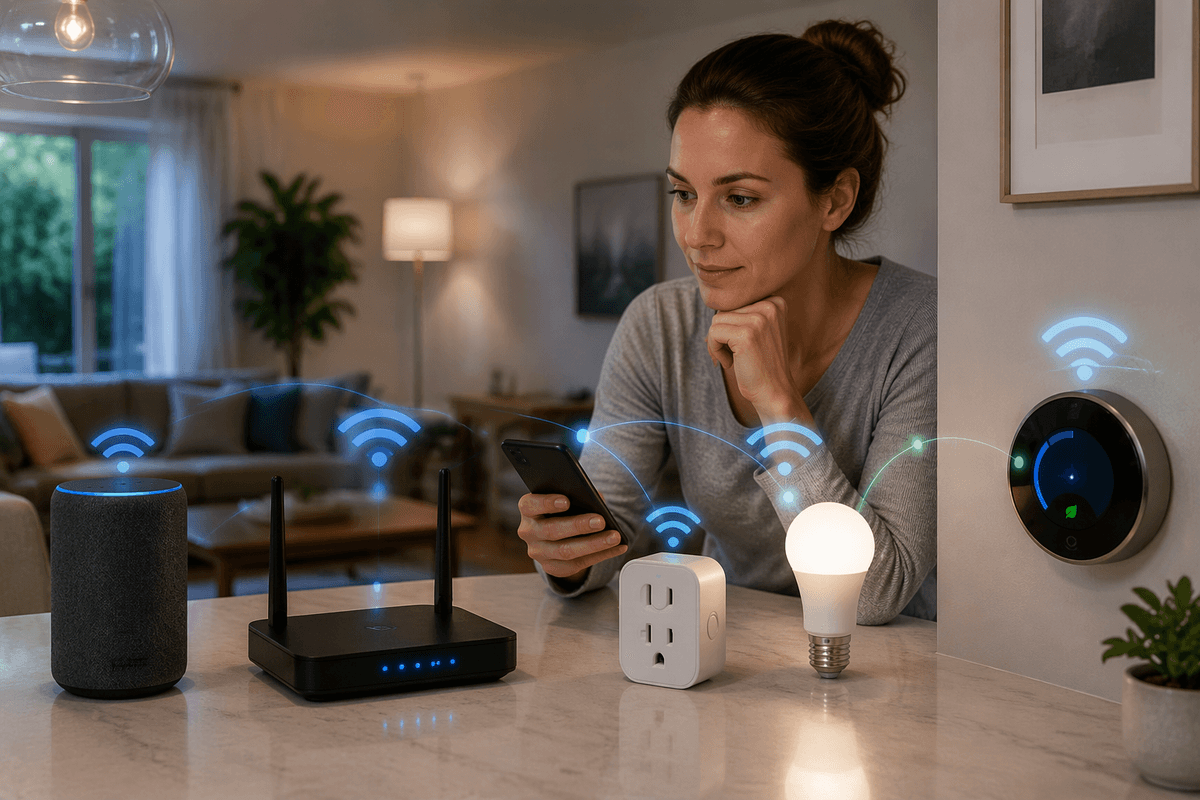
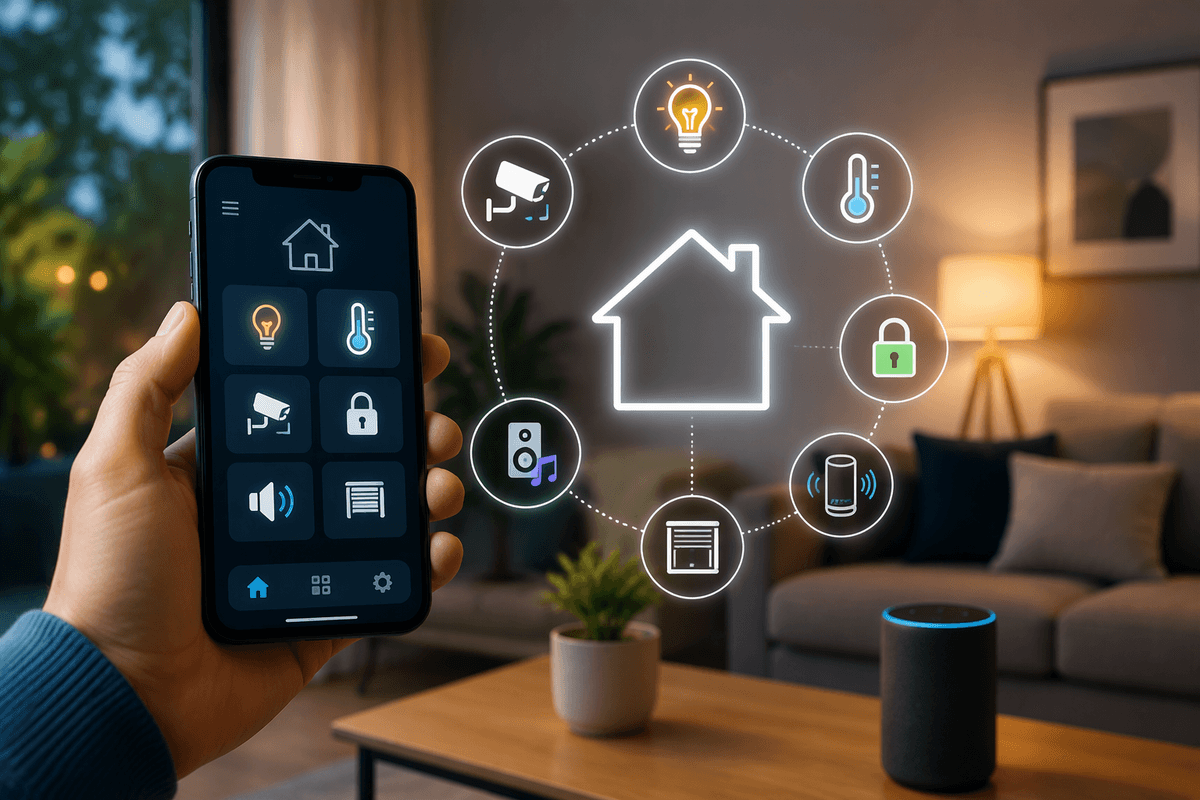
When a smart plug, bulb, or thermostat keeps going offline, first check whether the problem affects one device or several. If multiple devices fail at once, restart the Echo and your Wi-Fi router, then wait a few minutes for everything to reconnect. If only one device is affected, unplug it briefly, confirm that it has power, and check whether it is within reliable range of the router. A device may appear available in the Alexa app while its own manufacturer app shows the real connection problem.
Keep device names simple and unique, and place important smart-home equipment where walls, appliances, and metal surfaces do not weaken the signal. Many plugs and bulbs use 2.4 GHz Wi-Fi, so a router setting that combines network bands can sometimes complicate setup. Reconnecting the device through its manufacturer’s app may help, but it can remove it from Alexa routines or require you to recreate schedules. Avoid repeatedly resetting everything at once; identify the failing device first, then update its firmware or replace it if it drops offline despite stable power and Wi-Fi.
Reduce Alexa’s Privacy and Shopping Intrusions
Privacy and shopping interruptions often come from features enabled during setup rather than from a malfunction. Open the Alexa app and review voice history, notification permissions, communication settings, and voice purchasing. Delete saved recordings if you do not want them retained, or set automatic deletion instead of keeping them indefinitely. Turning off voice purchasing prevents accidental orders, while a confirmation code adds protection if you still want to buy by voice. Review household profiles as well, since a child or guest may be able to use the account associated with the Echo.
Notifications deserve the same attention. Disable delivery updates, deal alerts, recommendations, and promotional announcements that you do not find useful. If you use Amazon Shopping notifications, keep only the alerts that solve a real problem, such as package arrival updates. Remember that reducing these prompts may also remove reminders you rely on, so change one category at a time. For sensitive conversations, press the microphone button to disable listening temporarily, and consider placing Echo devices outside bedrooms or private work areas. These steps improve control, but they cannot make a shared household account completely private; anyone with physical access may still see device lights, hear responses, or change settings.
Make Music, Routines, and Profiles Work Properly
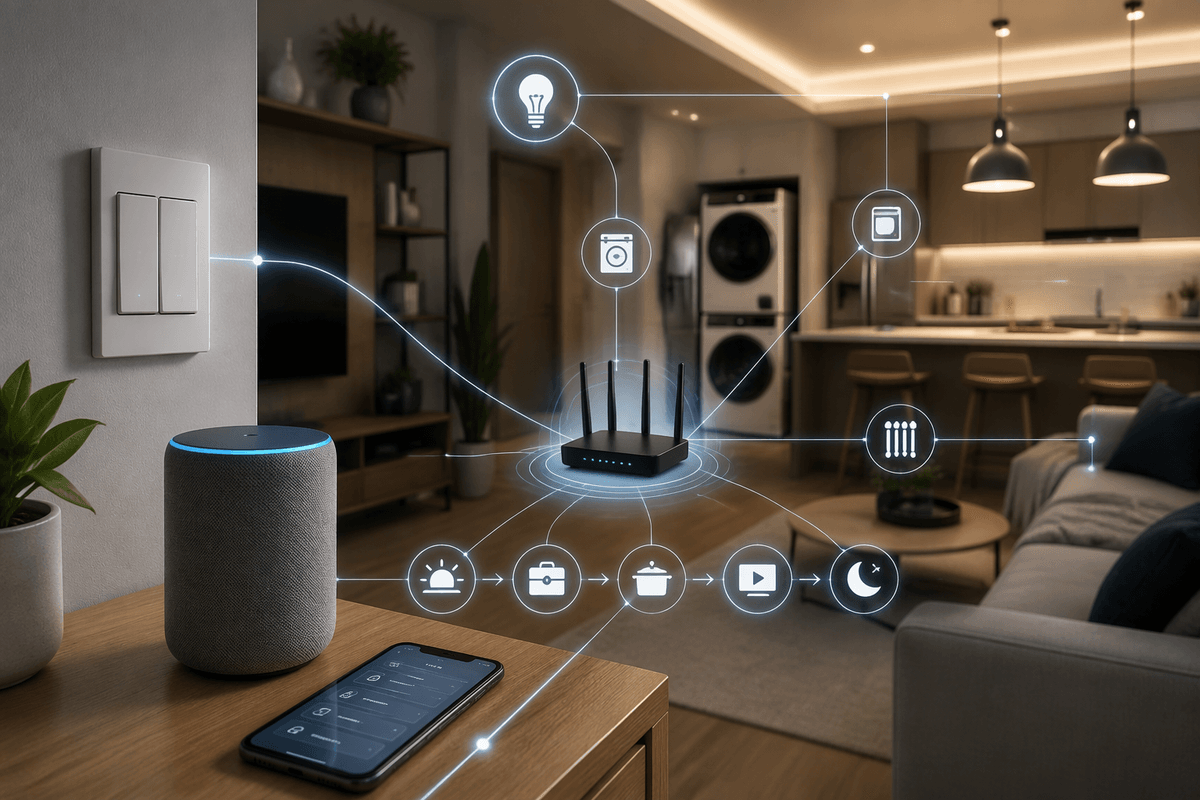
Music problems often come from account, room, or service mismatches rather than the Echo speaker itself. Check which Amazon account and profile are active, then confirm that the intended music service is linked and set as the default. If a request plays the wrong playlist or starts in another room, use the exact playlist name and specify the device or speaker group. Multi-room playback also depends on compatible Echo models, stable Wi-Fi, and synchronized groups, so a short delay or failed speaker may require removing and recreating the group.
Routines are more reliable when each trigger and action is specific. Review the routine for an outdated device name, an unavailable skill, an overly broad voice phrase, or a schedule based on the wrong time zone. Test actions separately before rebuilding the entire routine. If Alexa responds differently for different household members, check voice profiles and default services, since recognition can affect calendars, music accounts, shopping access, and personalized results. Profiles improve convenience but are not perfect; similar voices, background noise, or shared accounts can cause Alexa to select the wrong person. For important routines, keep a physical switch or manual shortcut available in case a cloud service, Wi-Fi connection, or linked skill fails.
Choose the Fix That Matches Your Frustration
When Alexa mishears you, focus on placement, wording, and voice history. When it wakes or interrupts at the wrong time, change the wake word, disable unused communication features, or schedule Do Not Disturb. Offline smart-home devices call for network and power checks, while shopping prompts and privacy concerns usually require notification, recording, profile, and purchasing changes. Music and routine failures are best handled by checking accounts, device groups, names, and individual actions rather than resetting everything.
Make one change at a time and test it before changing another setting. Some fixes reduce convenience: disabling voice purchasing adds a confirmation step, muting notifications may hide useful updates, and moving an Echo can improve privacy while weakening recognition. The goal is not to enable every feature, but to keep the settings that save effort and remove the ones that repeatedly create work.