Think Your PC Has Malware? Start Here
A slow PC does not automatically mean malware, but sudden changes deserve attention. Common warning signs include unfamiliar pop-ups, browser redirects, new toolbars, disabled security settings, unexplained password resets, or programs opening without your input. A sharp increase in crashes, network activity, or processor use can also be a clue, especially when several symptoms appear together.
Start by staying calm and avoiding risky “cleanup” advice from pop-ups or unfamiliar websites. Do not download several antivirus programs, delete random system files, or enter passwords on the affected computer until you know what is happening. The safest approach is to confirm the problem, limit the computer’s access to the internet, protect important accounts, and then use reputable scanning tools in a controlled order. If the PC contains irreplaceable files, plan for backup and recovery before making major changes.
Confirm the Problem Before Removing Anything
Before removing anything, check whether the symptoms point to malware or a simpler problem. Open Task Manager and look for a process using unusually high CPU, memory, or disk activity when you are not running demanding software. Note its name rather than ending it immediately. Review recently installed programs, browser extensions, and startup items for entries you do not recognize. A full drive, failing hardware, an outdated driver, or too many background apps can cause similar slowdowns.
Take screenshots or write down suspicious pop-ups, file names, changed browser settings, and the approximate time the behavior began. Check whether Windows Security or another reputable security program reports that protection is disabled, definitions are outdated, or a threat was found. Do not trust a warning simply because it looks official; legitimate alerts normally identify the security tool that produced them and do not demand payment through a pop-up. Avoid deleting unfamiliar files at this stage. Some legitimate system components have obscure names, and removing them can damage Windows or erase useful evidence.
Disconnect the PC and Protect Your Accounts
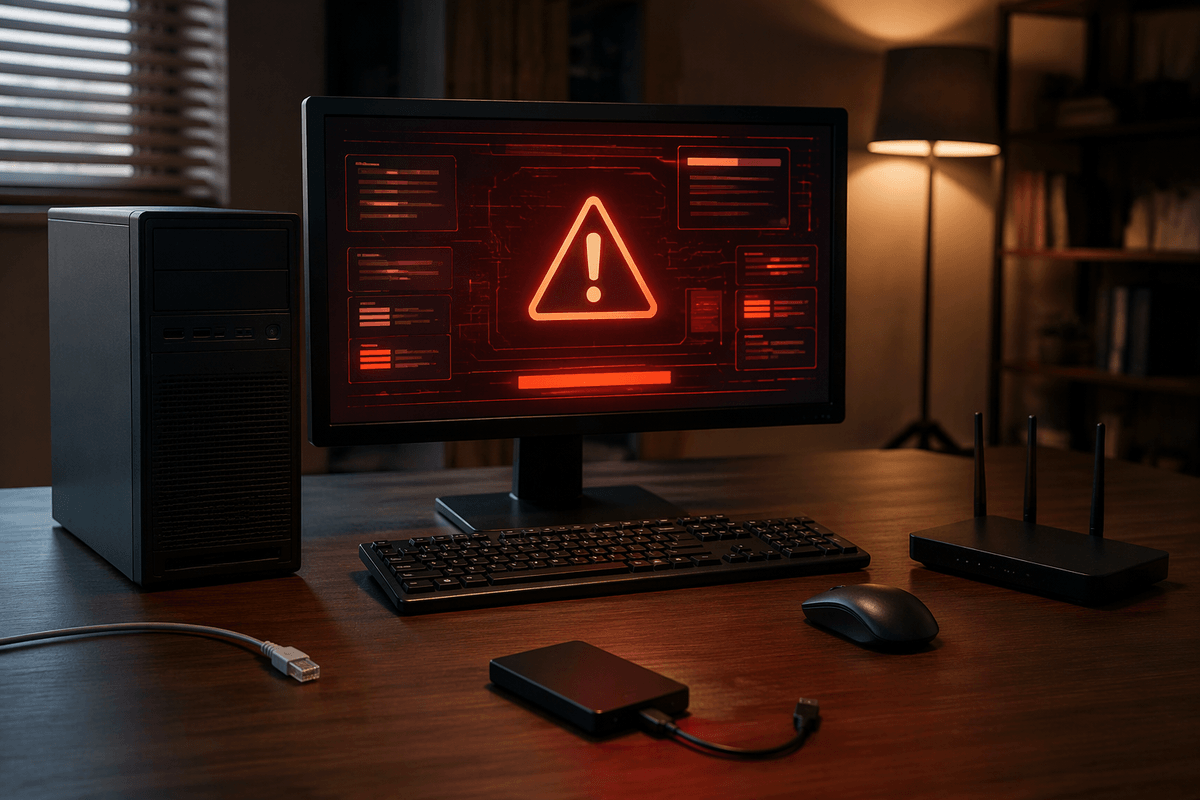
Once the symptoms look suspicious, reduce the PC’s ability to communicate. Disconnect the network cable or turn off Wi-Fi from the taskbar or router, and unplug external drives that are not needed. Avoid signing in to email, banking, shopping, or work accounts from that computer while it may be compromised. Isolation can interrupt downloads, remote access, and data theft, although it may also stop cloud backups and make some security tools unable to update.
Use a different, trusted device to change passwords for your email first, followed by banking, social media, and other important accounts. Create new, unique passwords rather than reusing an old one, and enable multifactor authentication where available. Review recent sign-ins, recovery details, and unfamiliar devices, then sign out sessions you do not recognize. If financial information may have been exposed, contact the bank or card issuer through its official phone number. Do not copy suspicious files to the clean device, and do not reconnect the affected PC just to check whether the problem has disappeared.
Run Trusted Scans in the Right Order
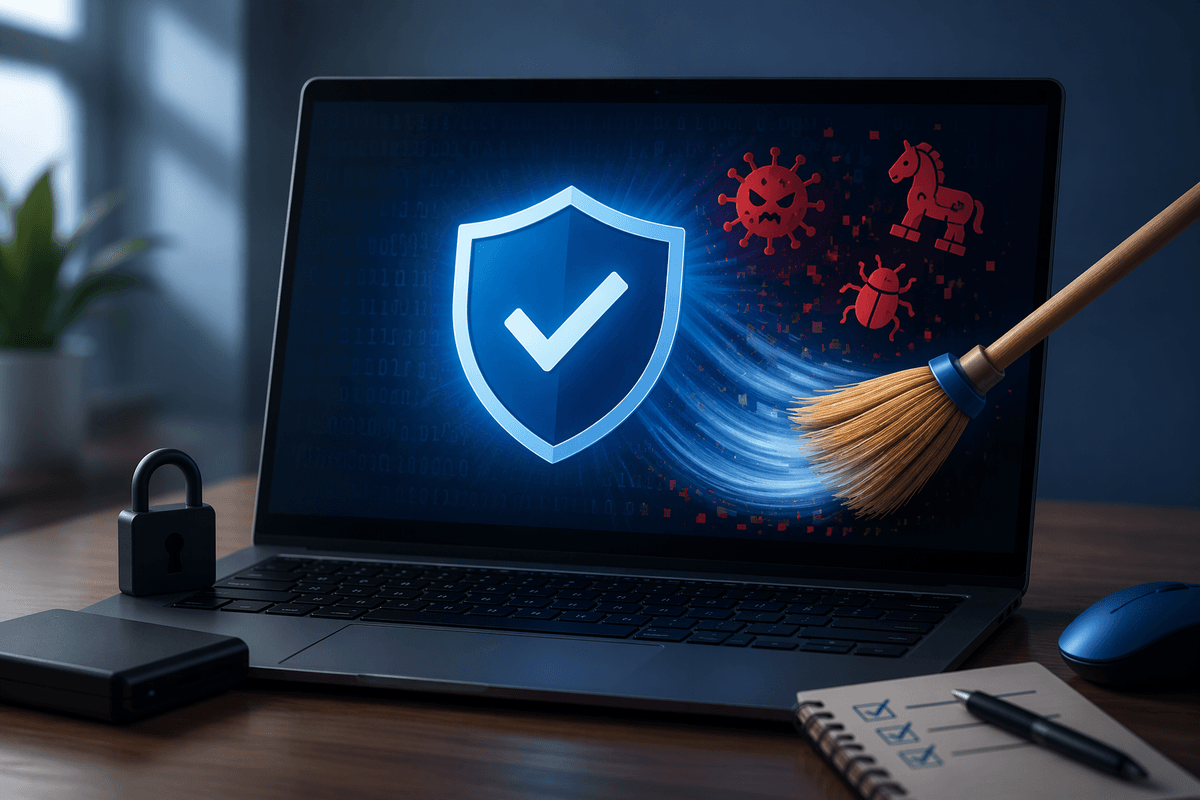
With the PC isolated, begin with the security protection already built into Windows, such as Windows Security. Update its threat definitions only if the computer can do so safely, then run a full scan rather than relying on a quick check. A full scan may take an hour or more, so keep the PC connected to power and avoid using it during the process. Quarantine detected items when prompted instead of choosing unfamiliar manual deletion options.
If the first scan finds nothing but the symptoms continue, use one reputable second-opinion scanner from its official source. Do not install several security products at once; they can conflict, consume system resources, and create confusing results. Follow the scanner’s instructions, allow it to remove or quarantine confirmed threats, and restart when requested. After restarting, run another scan to check whether the detection returns. If Windows cannot start normally, or the malware blocks security tools, use Windows Security’s offline scan or start the PC in Safe Mode. Persistent detections, encrypted files, or signs of remote control are reasons to stop experimenting and seek professional help before making further changes.
Handle Malware That Keeps Coming Back
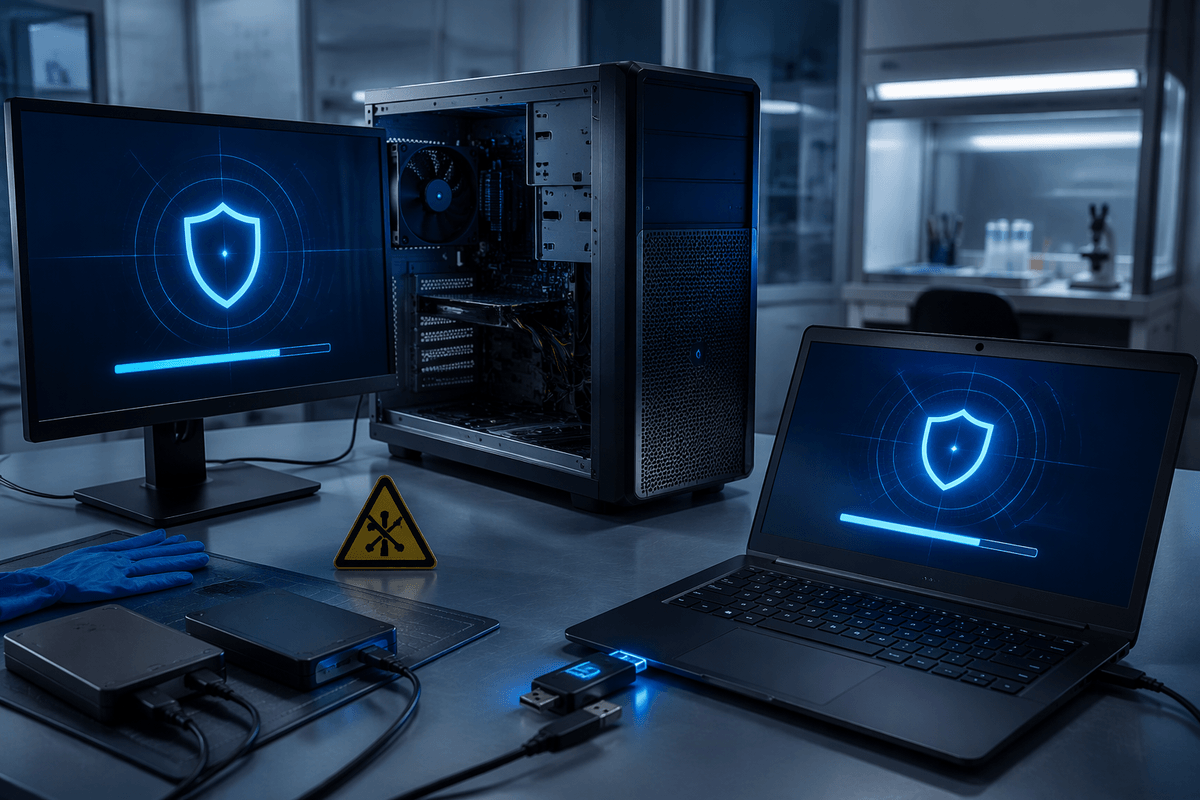
If the same threat returns after removal, do not keep clicking “clean” and restarting without finding the cause. Recheck browser extensions, installed programs, scheduled tasks, and startup entries for anything linked to the detection. Remove only items your security tool identifies or that you can clearly confirm are unwanted. Also inspect the browser’s notification permissions and reset its settings if redirects or fake alerts continue. A legitimate program, cracked software, or a USB drive can reinstall the same malware after each cleanup.
Run an offline scan when the threat may be active before Windows fully loads. If detections continue, disconnect external drives and scan them separately from a clean computer before reconnecting them. Persistent infections may have changed system files, disabled security controls, or created hidden accounts that are difficult to verify safely. At that point, back up personal documents only after scanning them, then consider using Windows recovery options or reinstalling Windows from trusted installation media. A reset can remove applications and settings, so confirm that important files and license information are available first. If ransomware, remote access, or business data is involved, preserve evidence and contact a qualified professional rather than attempting repeated repairs.
Recover Safely After the Cleanup
After scans stay clean and the suspicious behavior stops, reconnect the PC cautiously. Restore network access first, then let Windows and your security software install pending updates before opening email, banking, or other sensitive accounts. Check that real-time protection, the firewall, automatic updates, and browser security settings are enabled. If you used a reset or reinstall, reinstall applications only from their official sources and avoid restoring unknown browser extensions, cracked software, or old installers that may have caused the infection.
Recover personal files from a backup only after scanning the backup drive and the files you plan to restore. Documents, photos, and videos are usually safer than executable files, scripts, and unfamiliar archives, which deserve extra caution. Confirm that important files open normally, but keep the original backup untouched until you are confident the system is clean. Monitor account alerts, browser behavior, and security notifications for several days. If files remain encrypted, passwords keep changing, or the PC shows signs of remote access, keep it offline and get professional help rather than treating the cleanup as complete.
Prevent the Next Infection
Keep the PC updated, including Windows, browsers, security software, and commonly used applications. Turn on automatic updates when possible, and leave real-time protection and the firewall enabled. Use standard user accounts for everyday work instead of an administrator account, and install programs only from sources you trust. Treat unexpected attachments, urgent payment requests, fake virus warnings, and unfamiliar browser extensions as possible traps rather than instructions to follow.
Maintain at least one backup that is disconnected from the PC when it is not being used. Test that backup occasionally so a damaged or encrypted copy does not create false confidence. Review installed programs and browser extensions every few months, remove anything unnecessary, and avoid pirated software or unknown USB devices. No single safeguard prevents every infection, but updated software, cautious choices, unique passwords, multifactor authentication, and a recoverable backup greatly reduce the damage when one warning is missed.