Start With the Routine’s Intended Schedule
Begin by writing down what the routine is supposed to do and when it should run. Check whether it uses a fixed clock time, a repeating interval, or an event such as sunrise. A routine set for 7:00 a.m. behaves differently from one set to run at sunrise, even if they usually occur close together.
Open the routine’s details and record its active days, start time, end time, and any exceptions. Confirm that the schedule belongs to the expected home, room, or account. If the displayed schedule already differs from your original plan, correct that before investigating devices. This simple comparison separates a configuration error from a timing problem elsewhere in the system.
Check the Home’s Time Zone and Clock
If the routine’s schedule looks correct, check the home’s time zone before changing any device settings. A hub configured for Pacific time while the household is in Eastern time can shift every fixed-time routine by three hours. Open the platform’s home or location settings and verify the selected region, time zone, and daylight saving option if one is available. Some systems adjust automatically, while others depend on the phone, hub, or account that created the routine.
Then compare the platform’s current time with a trusted clock. Check the hub, controller, and at least one affected device rather than assuming they all share the same time source. A stale hub clock can make several routines run late, while one device with incorrect time may point to a local connectivity or firmware issue. Note whether the error is consistent—for example, always one hour early—or changes from run to run. A fixed offset often indicates time-zone or daylight-saving settings; inconsistent timing more often suggests clock synchronization, connectivity, or a trigger condition that is being evaluated later than expected.
Look for Sunrise, Sunset, and Location Rules

Routines tied to sunrise or sunset do not use a fixed clock time. They depend on the home’s location and the date, so a light scheduled for “sunset” may run noticeably earlier or later as the seasons change. Open the routine and check whether it uses the actual event, a fixed offset before or after it, or a weather-based condition such as civil twilight. A setting like “30 minutes before sunset” can look incorrect if you compare it with the published sunset time alone.
Verify the saved address or map location in the platform’s home settings. An outdated address, an incorrect city, or a location pinned on the wrong side of a time-zone boundary can shift sunrise and sunset calculations. Also check whether the platform applies the rule to the home’s location or to the phone that created the routine. If several sunrise-based routines are all shifted by a similar amount, investigate the shared location setting first. If only one routine is wrong, inspect its offset, active-day limits, and seasonal restrictions. Location-based schedules may also fail when the platform cannot refresh location data, so confirm that the displayed sunrise or sunset time updates for the current date.
Review Triggers, Delays, and Presence Conditions
A routine can appear to have the right schedule and location while still running at the wrong time because its trigger is not the final action. Check whether it starts from a button press, motion event, door sensor, alarm state, or another routine. Then review any “for,” “within,” or “after” setting. A motion trigger that requires five minutes of inactivity, for example, may delay the next action even though the schedule itself is correct. Also check whether multiple triggers can start the same routine, since an unexpected sensor event may make it seem as if the clock is unreliable.
Review presence and occupancy conditions separately. A routine limited to “when someone is home” may wait for location data, a phone check-in, or a hub’s occupancy estimate before continuing. Confirm which people, phones, rooms, or geofences count as present, and look for battery-saving or permission settings that prevent location updates. Compare the routine’s history with arrival and departure events. If the timing changes with who is home, the schedule may be working normally while the presence condition is being evaluated late. These checks are especially important when only one routine is affected; a shared trigger or presence service can explain several failures at once.
Compare App, Hub, and Device Schedules
When the schedule and its conditions look correct, compare where the timing is actually stored. The app may display a routine, while the hub executes it and the device applies its own local schedule. Open the routine in the app, then inspect the hub or controller’s automation list and the affected device’s schedule or timer settings. Confirm the time, active days, time zone, and daylight-saving behavior in each location.
This comparison can reveal split control. A hub may run a scene at 7:00 a.m., while a smart plug also has a local timer set for 6:30. Likewise, an app may show a recently edited schedule while the hub is still using an older version because the update failed or the device was offline. Look for duplicate schedules, cached entries, and settings marked as pending synchronization. If every device in one routine is early or late, focus on the app-to-hub path. If only one device behaves differently, inspect its local timer, clock, firmware, and connection. Device-level schedules can keep running even when the hub or phone is unavailable, but they are harder to find and may not update until the device reconnects.
Find Conflicts, Duplicates, and Failed Updates
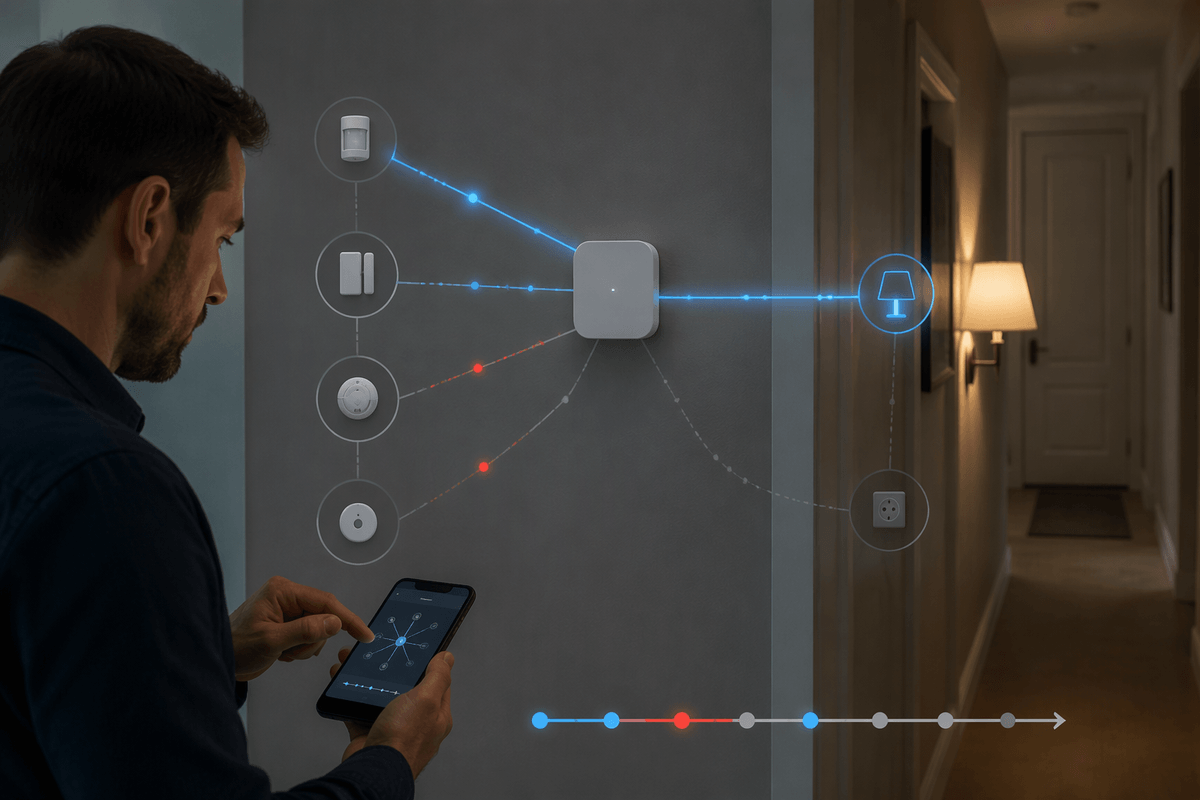
Once you know where each schedule is stored, look for rules that can issue the same command. Search the app, hub, and device for routines with overlapping names, times, or actions. A hallway light may be controlled by a weekday routine, a sunset scene, and a motion automation, making one command appear early or repeat unexpectedly. Disable or rename duplicates temporarily, then review the activity history to see which rule actually ran. Pay attention to scenes that call other routines, since a single scheduled action can indirectly start several automations.
Also check whether recent edits reached every controller. A routine may show the new time in the app while the hub retains the previous version because it was offline, restarting, or unable to authenticate with the service. Look for synchronization warnings, pending changes, stale “last updated” times, or devices that have not checked in recently. Reconnect the affected device or hub, allow the update to complete, and confirm the schedule again from the execution history. Avoid changing several routines at once: record the existing settings, correct one conflict or failed update, and observe the next scheduled run. This makes it easier to distinguish a platform-wide synchronization problem from one faulty device.
Test One Change Before Rebuilding Everything
After correcting a suspected cause, change only one setting and wait for the next scheduled run. For example, adjust the routine’s start time by five minutes, disable one duplicate rule, or remove a presence condition temporarily. Record the original value and the exact test you made so you can restore it if needed. Avoid rebuilding the entire routine while the cause is still uncertain; doing so can remove useful history and introduce new errors.
Compare the result with the expected behavior in the activity log. If the timing becomes reliable, the last change is a strong clue. Reapply other conditions one at a time until the problem returns, then focus on that setting or service. If nothing changes, test the same schedule with another device. Consistent failures suggest a platform or time-source problem, while one device still running early or late points to its clock, firmware, connection, or local schedule.