Why Faster Browsing Also Needs Safer Habits
A browser can feel slow for reasons that are easy to overlook: too many open tabs, outdated software, heavy extensions, or pages running activity in the background. But speed is only part of the problem. The same habits that create clutter can also increase privacy and security risks, especially when unused extensions retain access to browsing data or accounts remain signed in on shared devices.
The practical goal is not to change every setting. It is to make a few deliberate improvements that reduce unnecessary work, protect important information, and fit the way you already browse. Small choices—keeping Chrome updated, limiting background activity, reviewing permissions, and organizing tabs—can make everyday browsing both more responsive and safer.
Start With Updates and Safer Account Settings

Start by checking that Chrome is current. Updates often include fixes for security problems, compatibility issues, and browser behavior that can affect performance. Open Chrome’s menu, choose Help, then About Google Chrome. Chrome will check for updates and usually apply them after you relaunch the browser. Make this a habit when Chrome begins acting unusually or when you have postponed a restart for several days. Keeping the browser updated cannot prevent every problem, but it removes an avoidable source of risk and instability.
Then review how your Google Account is used in Chrome. Syncing bookmarks, passwords, and history can be convenient across devices, but only enable the categories you actually need. On a shared or borrowed computer, avoid turning on sync or saving passwords unless the device is managed and trusted. Use a separate Chrome profile when work, personal browsing, or family use would otherwise become mixed together. Also sign out of accounts you no longer use and lock your computer when stepping away. These choices take a little extra attention, but they reduce the chance that another person—or an old device—can access information you intended to keep private.
Reduce Slowdowns From Tabs and Background Activity
When Chrome slows down, start with the tabs you are no longer using. Each open page can consume memory, especially sites with video, live updates, large documents, or interactive tools. Close finished work instead of leaving it open for days, and save important pages as bookmarks or reading-list items. If you need several pages temporarily, group related tabs and collapse the group so it is easier to spot what can be closed.
Background activity can also keep Chrome working after a page is no longer visible. Open Chrome’s settings, search for “background,” and turn off the option that allows apps to continue running when Chrome is closed unless you rely on a specific app or notification. You can also use Chrome’s built-in Task Manager from the browser menu to identify tabs or extensions using unusually high memory or CPU. End a task only when you recognize it and do not need unsaved work. These changes may not solve slow internet service or an aging computer, but they reduce unnecessary browser activity and make the cause of slowdowns easier to identify.
Make Tab Overload Easier to Control
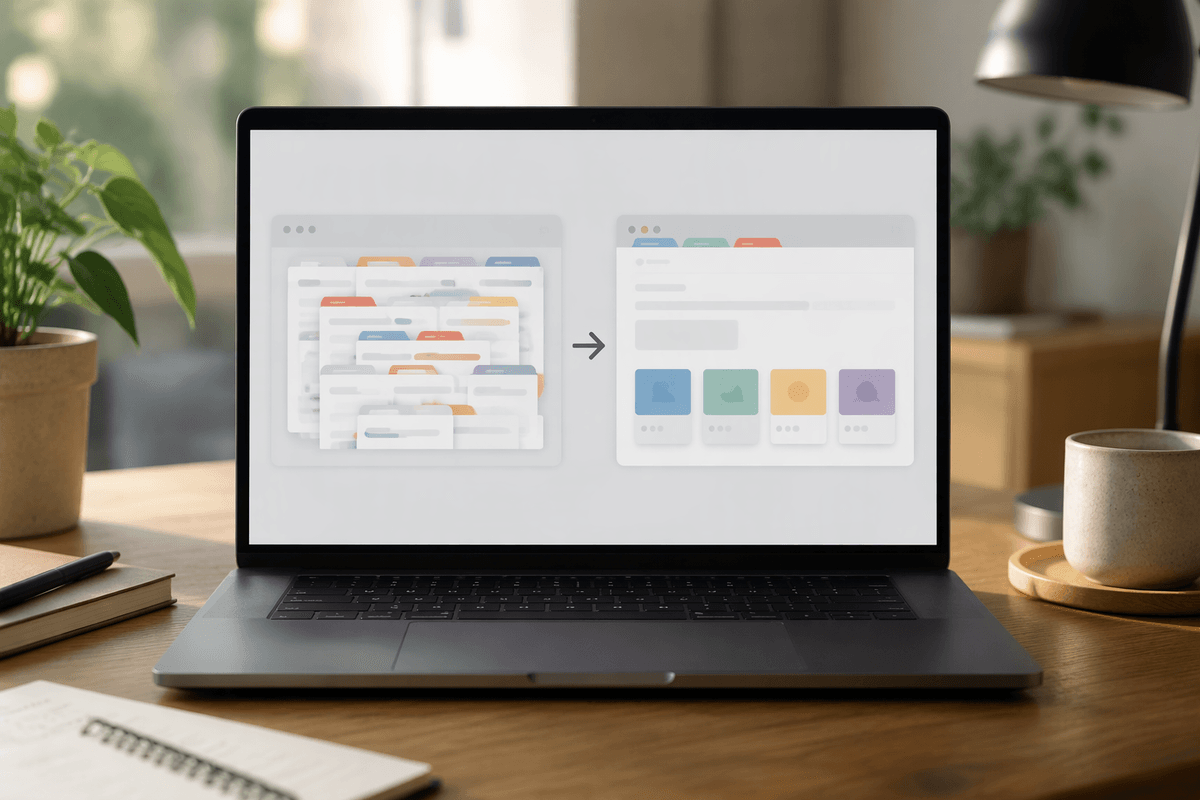
When tabs begin taking over the window, the problem is usually not just visual clutter. Important pages become harder to find, duplicate tabs stay open, and unfinished tasks compete for attention. Chrome’s tab groups can help separate work by purpose, such as “Research,” “Shopping,” or “Travel.” Give each group a short name, add a color if useful, and collapse groups when you are not actively using them. Avoid creating a group for every small task, or the system becomes another layer of clutter.
For pages you want to keep but do not need right now, use bookmarks or the reading list instead of leaving them open indefinitely. Chrome’s tab search can also help locate a page without scanning every tab, while the option to reopen recently closed tabs is useful after an accidental close. If you regularly reach dozens of tabs, set a simple limit—for example, close or organize anything that has been untouched for a week. Tab organization takes a few minutes and may feel inconvenient at first, but it prevents lost work, reduces distraction, and makes it easier to notice which pages are genuinely worth keeping open.
Use Search, Shortcuts, and Profiles More Efficiently
Once tabs are under control, make common actions take fewer steps. Use the address bar for more than website addresses: type a question, calculation, or search term directly, then press Enter. Chrome’s built-in search shortcuts can also send a query to a specific site when you know the site’s keyword or search format. This is useful for checking a document, finding a product, or searching a reference site without opening its home page first. Keep the default search engine set to one you trust, and be cautious when an unfamiliar extension or page asks to change it.
Keyboard shortcuts are most valuable when they match tasks you repeat. Ctrl+L or Command+L selects the address bar, Ctrl+Shift+T or Command+Shift+T restores a closed tab, and Ctrl+Tab or Control+Tab moves through open tabs. Chrome profiles provide another practical boundary: use separate profiles for work, personal browsing, or shared household use so bookmarks, history, saved passwords, and extensions do not become mixed together. Profiles are not a substitute for signing out on a public computer, and creating too many can make account management harder, so keep only the few that serve a clear purpose.
Check Extensions, Permissions, and Privacy Choices
Extensions can add useful features, but each one may consume memory and request access to information on the sites you visit. Open Chrome’s extensions page and remove anything you no longer use, do not recognize, or installed for a one-time task. For extensions you keep, review their site access and choose a narrower option when available, such as allowing access only when you click the extension. Be especially cautious with tools that can read browsing history, change page content, or manage downloads.
Review permissions when a website asks to use your location, camera, microphone, notifications, or pop-ups. Allow access only when the feature requires it, and remove permissions from sites that no longer need them. Chrome’s privacy settings also let you clear browsing data, control third-party cookies, and manage safe browsing protections. Stronger privacy settings can occasionally make sign-ins, shopping carts, or embedded content less convenient, so expect a few exceptions rather than disabling protections broadly. A short monthly review of extensions, permissions, and saved site data can prevent small compromises from becoming permanent browser clutter or a larger security problem.
Build a Chrome Routine You Can Keep
A reliable Chrome routine does not require constant tweaking. Once a week, close or organize unused tabs, restart Chrome if it has been running for days, and check whether any page or extension is using unusual resources. Once a month, review extensions, site permissions, saved passwords, and privacy settings. Remove anything you no longer recognize or need. These short checks are easier to maintain than waiting until the browser becomes slow, cluttered, or difficult to trust.
Keep the routine flexible enough for real life. Save important pages before closing them, use separate profiles only when they solve a clear problem, and change one setting at a time so you can notice its effect. Chrome will not eliminate slow internet, outdated hardware, or risky websites, but consistent habits can reduce avoidable problems and make everyday browsing faster, clearer, and safer.