Why Aren’t Shared Tasks Updating?
When a teammate changes a shared task but you still see the old version, the problem is usually not the task itself. The task may belong to a private project, your account may have limited access, or you may be viewing a different workspace, team, or duplicate task. In other cases, the update reached the service but has not synced to your device yet.
Comments, assignments, due dates, and status changes can also appear inconsistent when filters or saved views hide certain items. Notifications may be delayed or disabled, but that does not always mean the update failed. Start by confirming that everyone is opening the same shared task before investigating permissions, views, or synchronization.
Check Whether the Task Is Actually Shared
Open the task details and confirm that it belongs to a shared project, team, or workspace rather than a private list. A task can look familiar while still existing as a personal copy, a draft, or an item imported from another workspace. Check the task’s location, project name, and workspace before assuming that other members should see changes.
Then review the sharing information attached to that specific task. Look for listed collaborators, team access, or an indicator showing whether the item is private. If the platform offers a “share,” “invite,” or “access” option, confirm that the affected teammate is included and that the invitation was accepted under the correct account. Sending a task link is not always enough; some systems restrict access even when someone has the URL.
Make a small, visible test change, such as adding a temporary comment, and ask another member to open the task directly. If they cannot find it or see the test update, resolve the sharing or account mismatch before checking device sync or notification settings.
Verify Members, Roles, and Permissions

Once the task is confirmed as shared, check whether each affected person has the right membership and role. A teammate may be listed in the workspace but excluded from the specific project, team, or folder that contains the task. Review the member list using the account email or username they actually use to sign in, especially if they have multiple work or personal accounts.
Permissions can also differ by role. View-only members may see existing details but be unable to change status, assignments, or comments. Some platforms allow users to edit tasks while restricting project-level changes, such as inviting collaborators or moving items between lists. Confirm that the person testing the update has permission to make the change and that the recipient has permission to view it.
Check for pending invitations, suspended accounts, guest restrictions, and recently changed roles. Permission updates may not apply immediately, and some systems require the user to sign out and back in. If access looks correct, compare the task from both accounts before changing broader workspace settings.
Compare Filters, Views, and Task Statuses
If both accounts have the right access, compare what each person is actually viewing. A saved filter may hide completed tasks, items assigned to someone else, overdue work, or tasks without a due date. One teammate may be looking at “My Tasks” while another is viewing the full project, making the same update appear to be missing. Clear filters, switch to the project’s main task list, and sort by recently updated to test whether the item is present.
Check the task status as well. Some systems move completed, archived, blocked, or canceled tasks into separate views, and a status change may remove the task from the current screen immediately. Confirm that the task has not been grouped under another section, collapsed in a board column, or hidden by a custom view. If the platform supports personal view settings, compare those settings directly rather than relying on screenshots.
Notifications can confirm that an update occurred, but the task itself remains the better reference. If both users see different details in the same unfiltered view, investigate synchronization next.
Refresh Devices and Resolve Sync Delays
Start with the simplest test: open the same task on a second device or in the service’s web app. If the update appears there, the original app may have stale local data rather than a sharing problem. Close and reopen the app, pull to refresh, and check whether the device has a stable internet connection. On desktop, signing out and back in can refresh an expired session; on mobile, installing the latest app version may resolve an outdated sync component.
Give the system a short interval to process changes, especially after bulk edits, file uploads, imports, or work on a slow connection. Avoid making repeated corrections while the task is catching up, because delayed updates can create conflicting versions or duplicate comments. Check whether the platform reports an offline mode, queued changes, service interruption, or synchronization error. If local data remains incorrect, clear the app cache or reload the workspace, but confirm that unsent changes have finished uploading first.
When testing, make one small change and verify it from another device or account. If updates consistently appear only after manual refresh, record the timing and affected devices before escalating the issue.
Look for Conflicts, Integrations, or Duplicate Tasks
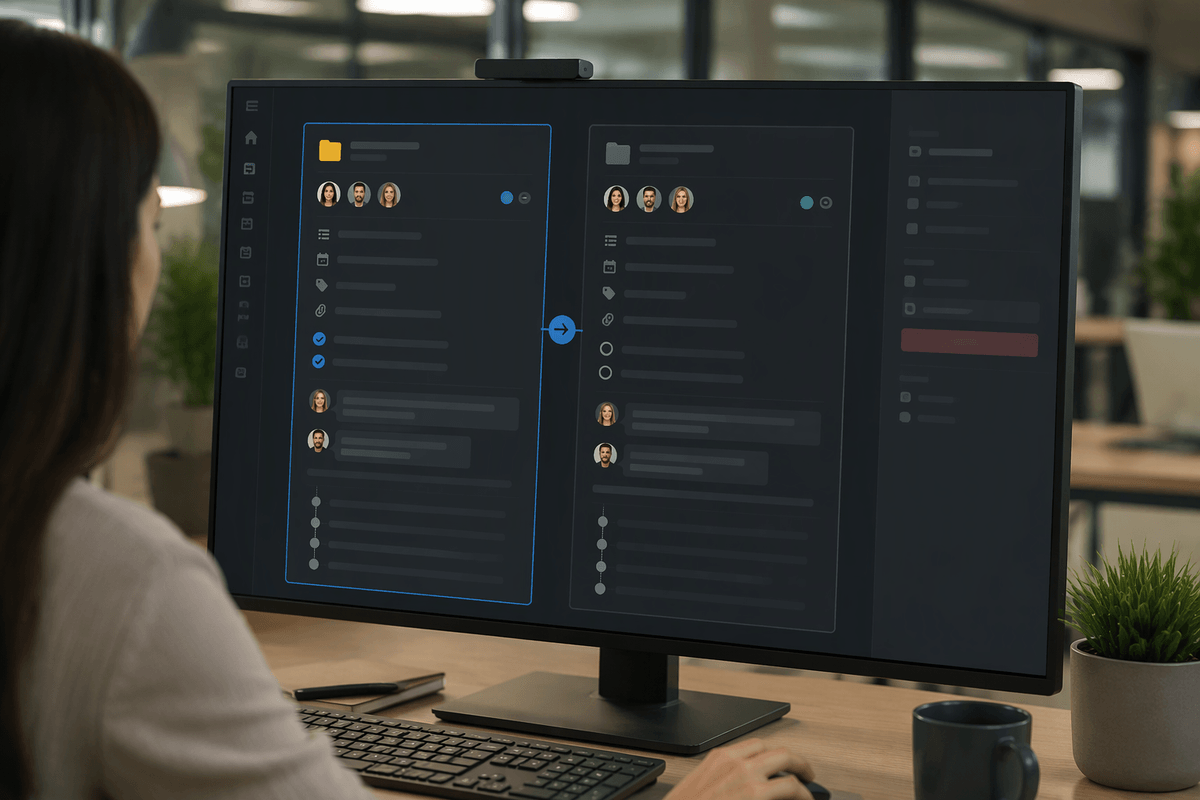
If updates appear on one task but not another, check for duplicate items before changing more settings. Teams often create copies during imports, recurring-task setup, template use, or quick manual recreation. Compare the task title, project, task ID, creation date, assignees, comments, and activity history. A shared link may open an older copy while the team is editing a newer one. Confirm which item is the active record, then archive or clearly label duplicates so future updates have one reliable destination.
Review integrations that create or modify tasks automatically. Calendar tools, email capture, forms, chat apps, and automation rules may overwrite statuses, change assignees, move tasks, or create a second item when a trigger runs more than once. Check the integration’s connection account, field mappings, sync direction, and recent activity log. Temporarily pause a suspected automation and make one controlled test update. Keep in mind that disabling an integration can stop useful workflows or leave external systems out of date, so document its current settings first.
If two services continue changing the same task, assign one system as the source of truth and limit edits elsewhere.
When to Escalate and Prevent Repeat Problems
Escalate when the same update fails across devices, accounts, and an unfiltered project view, or when activity logs show changes that never reach other members. Collect the task link or ID, affected accounts, timestamps, devices, app versions, screenshots, and any error messages. Avoid repeatedly editing the task while support investigates; queued or conflicting changes can make the record harder to interpret. Ask an administrator to verify workspace permissions, service status, audit logs, and integration activity.
To prevent repeat problems, define one source of truth for each project, limit duplicate task creation, and document which roles can edit or share work. Keep integrations reviewed after permission or workflow changes, and include a short visibility test when onboarding members. A reliable process is simple: confirm the shared record, compare access and views, test synchronization, then escalate with evidence when the problem persists.