Why Everyday PDF Tasks Take Too Long
Many PDF tasks take longer than they should because people handle each file as a separate problem. They open one application to view a document, another to convert it, and a third to add a signature or combine pages. Even simple jobs—finding a clause, extracting a page, correcting a typo, or sending a review copy—can turn into a chain of downloads, renamed files, and repeated uploads.
The bigger cost is usually not the task itself but the manual decisions around it. Users may scroll through dozens of pages, create duplicate versions, or rebuild a document after discovering that formatting changed during conversion. Acrobat can reduce this friction by bringing search, editing, organization, review, conversion, and sharing into a more consistent workflow. The practical goal is not to automate everything; it is to remove the small delays that occur repeatedly throughout the day.
Set Up Acrobat for Faster Daily Work

Start by setting Acrobat up around the tasks you perform most often. Keep frequently used tools such as Edit, Organize Pages, Combine Files, Export, and Fill & Sign easy to reach instead of searching through menus each time. A consistent workspace matters when you switch between invoices, class readings, contracts, or application forms. It also helps to choose a clear file-naming pattern, such as date, project, and document type, so the correct version is easier to identify later.
Acrobat’s Preferences can remove smaller sources of friction. Set a useful default view, enable automatic updates when appropriate, and review options for saving, opening, and displaying documents. If you regularly work with scanned files, keep optical character recognition available so image-only pages become searchable. Create a small set of trusted folders for incoming files, active work, and completed documents rather than leaving everything in Downloads.
These changes will not eliminate every delay, and OCR or large file processing can still take time. They do, however, make the next action more predictable, which is often where the largest daily gains begin.
Find Information Without Reading Every Page
When a document is longer than a few pages, scrolling is usually the slowest way to find an answer. Use Acrobat’s search tools to look for a specific word, phrase, date, or reference number instead. The basic Find command works for quick checks, while Advanced Search can search the entire document, show every match, and distinguish between whole words or similar terms. Search results become more useful when you search for distinctive wording rather than broad terms such as “information” or “project.”
Scanned documents require one extra step. Run OCR before searching so Acrobat can recognize text inside page images. Afterward, review important matches against the original page because recognition errors can affect names, numbers, and unusual formatting. For recurring work, use bookmarks, headings, and page labels to create a clearer route through the file. You can also extract only the pages that contain the needed material, reducing the amount others must review. These features save time, but they do not replace judgment: a search may find the exact phrase while missing related wording, tables, handwritten notes, or information stored in an image.
Edit, Organize, and Combine Files Efficiently
Once you find the needed information, the next delay often comes from preparing the document itself. Acrobat’s Edit a PDF tool lets you correct short passages, update dates, replace images, or adjust text without rebuilding the file from its original application. It works best for targeted changes; extensive rewriting can disturb spacing, fonts, or page layout, especially in complex forms and heavily designed documents.
For page-level work, use Organize Pages to rotate, reorder, delete, insert, or extract pages with less risk of creating duplicate files. Give extracted pages a clear name and keep the original unchanged until the revised version has been checked. When information is spread across several files, Combine Files can assemble PDFs, word-processing files, spreadsheets, and images into one package. Arrange the source files before combining them, then review page order, bookmarks, orientation, and unexpected blank pages.
These tools reduce repetitive exporting and copying, but accuracy still depends on a final visual check. Confirm that headers, page numbers, signatures, links, and form fields survived the changes before sharing the finished PDF.
Use Comments and Collaboration Without Confusion
Reviewing a PDF becomes confusing when comments, email replies, and separate file versions are spread across different places. Use Acrobat’s comment tools to keep suggestions attached to the exact text, image, or page they concern. Highlight important passages, add a short note, and use replies when a discussion needs clarification. Labels, colors, and filters can help separate questions from approved changes, but agree on a simple convention before a group review begins. For example, reviewers might use comments for issues and replies for decisions.
Before sending a review copy, check that the document has a clear name and that recipients know whether they should edit, comment, or simply approve it. Shared review features can collect feedback in one place, reducing duplicate versions and overlooked messages. After responses arrive, filter comments by author or status, resolve items only after confirming the change, and export or summarize the final decisions when a record is needed. Collaboration still requires control: too many reviewers, vague notes, or unresolved duplicate comments can slow the process more than email. A short review deadline and one designated person managing final changes usually keeps the PDF organized.
Automate Repetitive Forms and Document Tasks
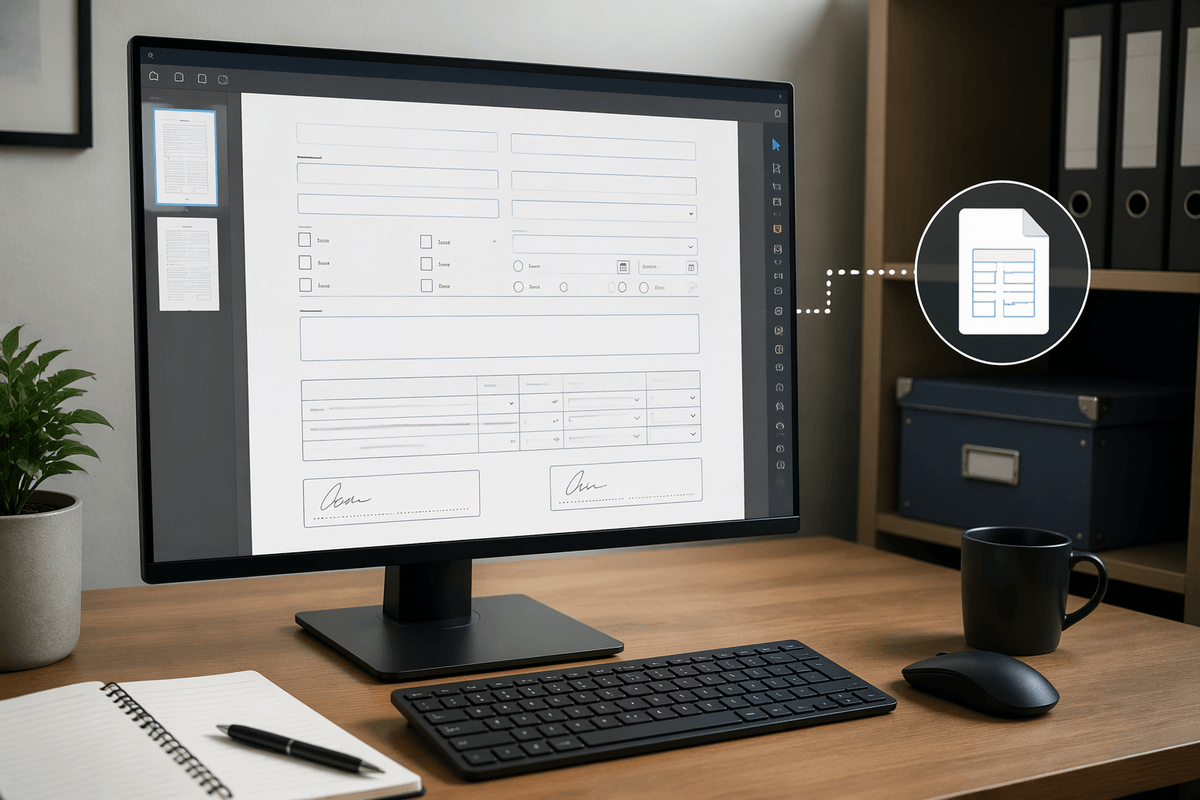
Forms are often where small delays multiply. If you repeatedly send the same application, intake sheet, or approval document, use Acrobat’s Prepare a Form tools to turn a static file into a fillable one. Add text fields, checkboxes, date fields, dropdowns, and signature areas, then give each field a clear name and logical tab order. Saving a reusable template prevents you from rebuilding the same layout for every recipient. For routine packets, combine the template with supporting PDFs and keep a clean master copy separate from completed forms.
Acrobat can also reduce manual entry through saved form data, imported data, and batch actions for repeated conversions or file processing. These options are useful when several documents follow the same pattern, but they require testing before wider use. Check that fields accept the right format, calculations produce sensible results, and converted files preserve labels and spacing. Automation may save time while introducing errors at scale, so review a sample of completed forms and protect sensitive information when collecting or sharing them. The best workflow automates predictable steps while leaving unusual cases for manual inspection.
Make Speed Gains Without Sacrificing Accuracy
The fastest workflow is not always the one with the fewest clicks. Before sending a PDF, pause for a short quality check: confirm the correct file, review page order, test links and form fields, and verify that names, dates, totals, and signatures are accurate. Open the document as a recipient would, especially after conversion, OCR, combining, or batch processing. A few minutes of review can prevent a much longer correction cycle.
Use Acrobat’s automation and shortcuts for predictable work, but keep human review where the cost of an error is high. Save originals, avoid unnecessary duplicate versions, and record which file is final. Over time, track the tasks that still cause delays and adjust your tools or templates around them. The practical goal is a repeatable process: automate routine actions, check important details, and make the next document easier to handle than the last.