Why Python Says the Package Is Missing
When Python raises ModuleNotFoundError, it is not necessarily saying the package is absent from your computer. It is saying that the Python process running your script cannot find that package on its import path. That distinction explains why installing a library can appear to succeed while the script still fails.
The usual cause is an environment mismatch: the package was installed for a different Python interpreter, virtual environment, or user account. A second possibility is a naming conflict. A file such as requests.py, a folder with the package’s name, or a stale compiled file can take precedence over the real library. IDEs and notebooks add another layer because they may select their own interpreter. Identify the interpreter first, then check the package from that same environment.
Confirm Which Python Runs Your Script
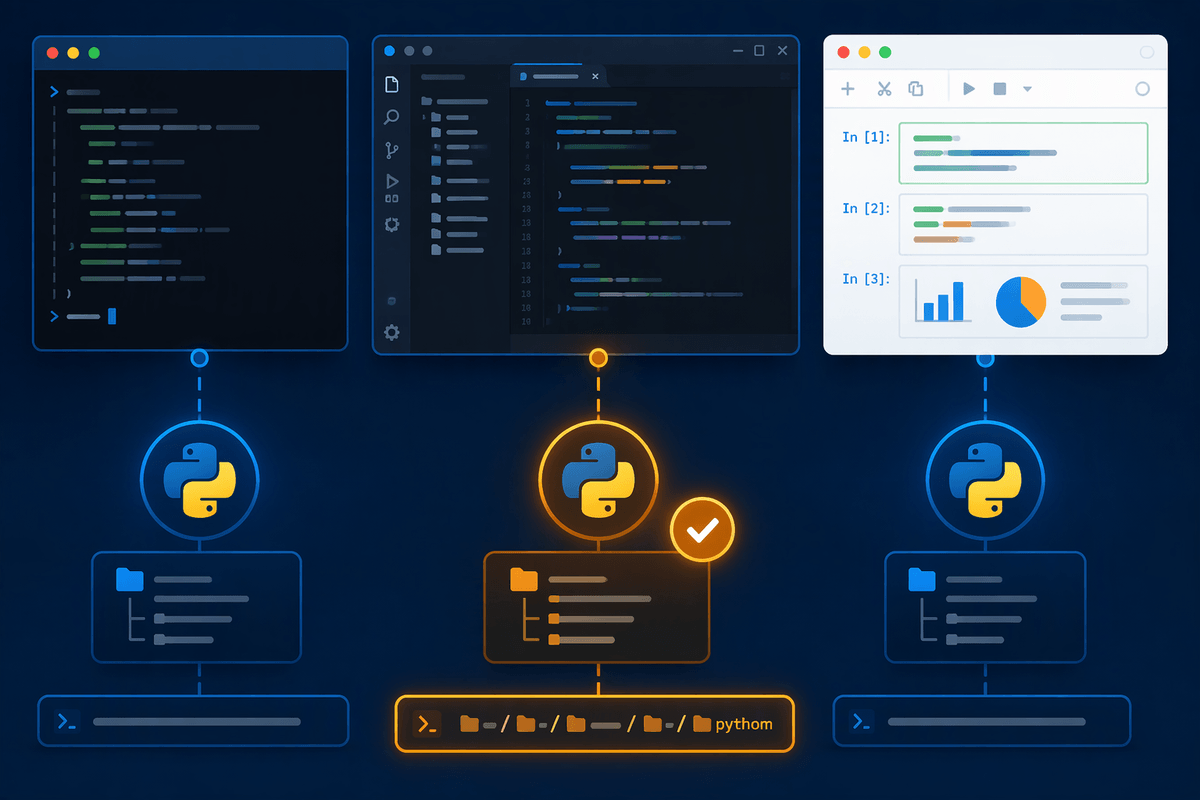
Start by checking the interpreter from inside the script that fails. Add a temporary line near the top: import sys; print(sys.executable). Run the script normally, not from a different terminal command. The printed path is the Python executable actually processing your code. Compare it with the interpreter you expected, such as the one inside a project’s .venv directory.
You can also inspect the shell’s default interpreter with python -c "import sys; print(sys.executable)" or, on some systems, python3 -c "import sys; print(sys.executable)". These commands are useful only when run in the same terminal and activated environment as your project. An IDE may use a separate interpreter even when its integrated terminal shows another one, so check the project’s interpreter setting as well. In a notebook, run import sys; print(sys.executable) in a cell; the kernel path matters more than the terminal prompt.
Once you know the exact executable, use that interpreter for the remaining checks and installation commands. This removes guesswork and prevents repeatedly installing the package into environments your script never uses.
Check the Package in That Environment
With the interpreter path confirmed, ask that exact Python whether it can see the package. Use its executable to run a small import check, for example python -c "import package_name; print(package_name.__file__)". Replace package_name with the import name used in your script, which may differ from the name used by the package manager. A successful result shows the file Python is loading; an import failure confirms that this environment cannot currently find the package.
To inspect installed package metadata, run python -m pip show package-name with the same interpreter. The Location field should point into the environment associated with sys.executable. If it points to a different virtual environment, system directory, or user-level site-packages folder, the installation went somewhere else. The distinction between package-name and package_name matters here: pip uses the distribution name, while Python uses the import name.
If the package imports but comes from an unexpected path, inspect that location before reinstalling. A local file or folder with the same name may be shadowing the intended library, and the reported __file__ path exposes that problem directly.
Install It Without Targeting the Wrong Python
Install the package through the interpreter that will run the script, rather than calling a standalone pip command. For an activated environment, use python -m pip install package-name. This asks that specific python command to launch pip, keeping the installation tied to the selected interpreter. If you recorded an exact executable path, use it directly, such as /path/to/.venv/bin/python -m pip install package-name or C:\path\to\.venv\Scripts\python.exe -m pip install package-name.
After installation, verify the result with the same executable: python -m pip show package-name, followed by python -c "import package_name; print(package_name.__file__)". Do not switch back to an unqualified pip command between these checks. That command may belong to a system installation, another virtual environment, or a user-level package directory.
If the environment is managed by an IDE, notebook, operating-system package manager, or project tool, changing it manually may be temporary or discouraged. Select the correct interpreter through that tool, then install using its documented environment or terminal. Upgrading pip or reinstalling repeatedly will not fix a mismatch; it may only create more conflicting copies.
Look for Naming and Import Conflicts
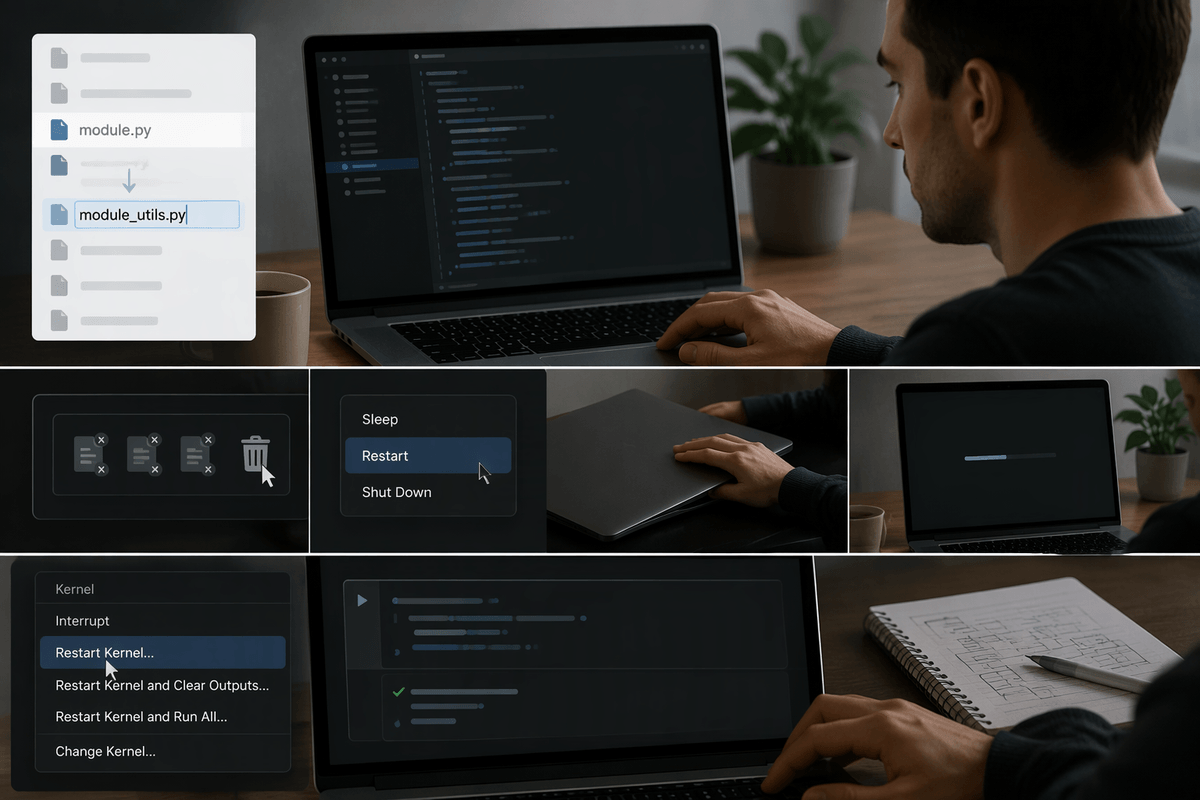
If the package is installed in the correct environment but the import still fails, inspect your project directory for names that collide with the package or one of its dependencies. A file named requests.py, numpy.py, or json.py can be chosen before the real library. A folder with the same name can cause the same problem. Rename the conflicting file or directory, then remove any related __pycache__ entries and retry the import.
Check what Python is actually loading by printing the module path: import package_name; print(package_name.__file__). If the path points into your project instead of the environment’s site-packages directory, shadowing is the likely cause. The same check can reveal an unexpected duplicate installation or a different package with a similar name.
Also review the script’s filename. Naming it after a standard library module, such as email.py or logging.py, can break unrelated imports and produce confusing errors. Rename it, restart the interpreter or notebook kernel, and test again. This fix costs little, but it requires restarting because Python may retain the conflicting module in sys.modules.
Account for IDEs, Notebooks, and Project Paths
An IDE can run a script with a different interpreter from the one shown in its terminal. Check the project’s configured Python interpreter, then compare it with sys.executable printed by the failing script. If they differ, select the intended virtual environment in the IDE and restart the run session. Installing the package in the terminal will not help if the IDE continues using another interpreter.
Notebook kernels create a similar separation. The kernel may belong to an old virtual environment even after you activate a new one in the terminal. Run import sys; print(sys.executable) in a cell, and install through that executable when necessary, for example with sys.executable and a subprocess call to -m pip. Restart the kernel after changing packages so it does not retain stale imports.
Project paths can also change what Python finds. A script launched from the project root may resolve local modules differently from one launched elsewhere, especially when relative imports or configuration files are involved. Run the script using the project’s normal entry point and inspect sys.path if behavior changes between the IDE, terminal, and notebook. Consistency matters more than repeatedly reinstalling the package.
Use a Short Diagnostic Checklist
When an import fails, work through the checks in this order: print sys.executable from the failing script; run python -m pip show package-name with that same interpreter; test import package_name and print package_name.__file__; then compare the reported path with the expected environment’s site-packages directory.
If the package is missing there, install it with that interpreter: python -m pip install package-name. If it is installed but the path points into your project, rename the conflicting file or folder and remove relevant __pycache__ files. If the paths look correct, compare the script’s interpreter with the IDE or notebook kernel and restart it after changing environments.
This process identifies the actual cause before you reinstall anything. The practical rule is simple: verify the running executable, inspect the package location, then fix the mismatch or naming conflict that the evidence reveals.