Why Teams Communication Often Breaks Down
A busy Teams workspace can look productive while work quietly slips through the cracks. A question may be buried beneath casual chat, an important update may appear in several channels, and a meeting may be scheduled simply because no one knows where the latest file or decision lives. The problem is rarely the number of features. It is usually the lack of shared habits for choosing where information belongs and what action it requires.
Teams also makes communication feel immediate, which can encourage people to send messages before clarifying the purpose, audience, or deadline. Over time, notifications multiply, conversations split across chats and channels, and employees spend more time searching than contributing. Clearer teamwork starts by matching each type of work to the right place, format, and level of urgency.
Set Up Teams Around How Work Happens
Start by organizing Teams around the work people actually do, not the company chart alone. A team may need a space for a department, a project, or a recurring service, while channels can separate major workstreams such as hiring, customer support, or a product launch. Keep channel names specific enough to guide people. “Client onboarding” is more useful than “General,” because it tells readers what belongs there and where to look later.
Give each space a clear purpose, owner, and expected use. Use a standard channel for ongoing discussion, a private channel only when access truly needs to be limited, and shared files where the working group can find them with the conversation. Pin or surface key documents, decisions, and instructions so people do not have to search through old messages. Avoid creating a new team or channel for every short-lived question; too many spaces make the structure harder to remember and maintain. A smaller, consistent setup usually helps people respond faster because they know where work belongs.
Choose Chat, Channels, or Meetings Wisely
When someone needs a quick answer, a direct chat is usually the right choice. Use it for a focused question, a brief clarification, or a time-sensitive coordination detail involving only the people who need to respond. Move the conversation into a channel when the information may help others, relates to ongoing work, or needs to remain easy to find later. Posting a project decision in a private chat may feel faster, but it can leave teammates without the context they need.
Meetings should handle work that benefits from discussion, judgment, or rapid back-and-forth. They are useful for resolving disagreement, making a decision with several stakeholders, or working through a complex issue that would take too many messages. They are a poor substitute for a simple update or document review. Before scheduling one, state the purpose, decision needed, and required participants. A short meeting can still create overhead when calendars are full, so consider a channel post, shared document, or collaborative reply first. The goal is not to reduce every interaction to text; it is to place each interaction where it can produce a clear result with the least unnecessary effort.
Make Messages Easier to Read and Act On
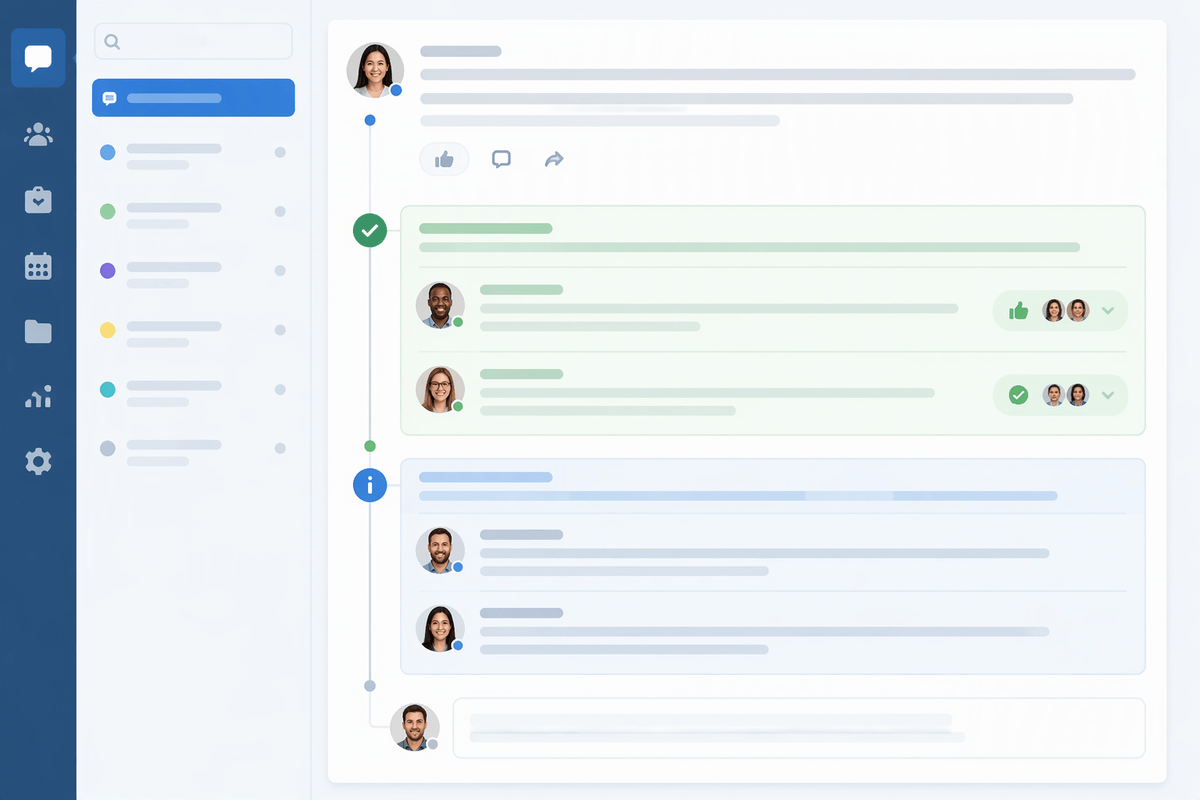
A clear Teams message helps the reader understand the situation, the required action, and the timing without reconstructing the story. Start with the purpose: “Please review the revised quote and confirm approval by Thursday at 3 p.m.” Add only the context needed to make that request meaningful. If several points are involved, use short paragraphs or a brief numbered list rather than one dense block of text. Mention the owner when responsibility is not obvious, and include the relevant file or conversation location so people do not have to search.
Use replies to keep related discussion together, but start a new post when the subject, decision, or audience changes. A reaction can confirm that someone has seen an update, but it should not replace a response when a decision or commitment is required. For important outcomes, state the decision and next step plainly in the final reply. Formatting takes a little extra time, and overly elaborate messages can slow people down, but a few deliberate choices reduce clarification questions, missed deadlines, and repeated follow-ups.
Run Meetings That Move Work Forward
A meeting works best when participants know what must be different by the time it ends. Put that outcome in the Teams invitation, along with the decisions to make, the preparation required, and the people whose input is necessary. Share the relevant file or questions beforehand so the meeting is used for discussion rather than reading. If the purpose is only to deliver information, a channel post or recorded update may be more efficient.
During the meeting, keep a visible record of decisions, open questions, owners, and due dates. Someone should capture these points in the meeting chat, shared notes, or a working document while the discussion is fresh. End by confirming who will do what and when, then post a concise follow-up in the relevant channel. This creates a useful record for people who could not attend and prevents the same issue from returning to the agenda. Meetings still carry a real cost: even a short call interrupts focused work, and recurring invitations can continue long after their value declines. Review recurring meetings regularly and cancel, shorten, or replace them when the work no longer requires live discussion.
Collaborate on Files Without Losing Control

When several people work on the same document, upload it to the relevant Teams channel or shared workspace instead of sending separate copies by email or chat. A central file gives everyone one place to find the current version and keeps related discussion near the work. Use a clear file name, meaningful folder structure, and consistent naming for drafts when versions must be retained. Assign an owner who can confirm which file is final and archive outdated material.
Use comments, @mentions, and tracked changes to explain what needs attention rather than adding vague messages such as “Please review.” Agree on who will edit, approve, and publish the document, especially when several teams are involved. Check sharing and access settings before adding external users or placing sensitive information in a broadly available location. Version history can recover earlier work, but it does not replace good coordination; simultaneous edits, conflicting changes, and duplicate downloads can still create confusion. Before announcing completion, confirm that the approved file is in the agreed location and that the decision or next step is recorded in the related conversation.
Turn Small Habits Into Better Teamwork
Better teamwork usually comes from repeating a few dependable habits rather than adding more tools. Check the relevant channel before asking a question, reply in the existing thread, and update the shared file instead of sending another attachment. When you finish a task, record the decision, owner, or next step where the people involved can find it. These small actions reduce duplicate work and make progress easier to follow.
Teams should also review what is creating friction. If people keep missing announcements, clarify where updates belong. If meetings regularly end without decisions, improve the agenda or replace them with focused written updates. If a channel has become difficult to use, archive outdated material and restate its purpose. These improvements take time, and not every habit will work equally well for every group. The useful standard is simple: make information easier to find, make responsibilities visible, and choose the least disruptive way to move work forward.