Why Podcasts Fail to Download Offline
When a podcast episode will not download, the problem is usually less mysterious than it first appears. A weak or interrupted connection can stop the transfer, especially when switching between Wi-Fi and mobile data. The phone may also be low on storage, or the podcast app may be set to download only on Wi-Fi, only the newest episode, or nothing automatically.
Some failures come from the episode itself. It may have been removed, restricted in your region, or affected by a temporary problem with the podcast service. App permissions, battery-saving features, outdated software, and account limits can also interfere. Start by identifying whether every podcast fails or only one show or episode. That distinction quickly narrows the likely cause and prevents unnecessary changes to unrelated settings.
Start With the Network and Download Status
Begin with the download itself rather than changing app settings. Open the episode and check whether it shows a download icon, a progress bar, a pause symbol, or an error message. If it is still waiting, keep the app open for a moment and confirm that the phone has a stable connection. A weak Wi-Fi signal, captive public network, or brief switch to mobile data can leave the download appearing active when no data is moving.
Try downloading a different episode while connected to reliable Wi-Fi. If several downloads fail, restart Wi-Fi, disable airplane mode if it is enabled, and retry after reopening the app. On mobile data, verify that the podcast app is allowed to use cellular data; many apps block downloads over cellular connections by default. Also check whether a queue is paused or whether another large download is using the connection. If one episode downloads normally but another does not, the network is less likely to be the main cause, so avoid repeatedly retrying and move on to the episode or app settings.
Check Storage Before Changing Settings
Before changing download rules, check how much free space the phone has. Podcast files are often modest in size, but several episodes, video podcasts, photos, or app caches can fill storage faster than expected. When space is nearly full, an app may leave a download stuck, remove a partially saved file, or show a vague error instead of explaining the cause.
Open the phone’s storage settings and look for available space, then check whether the podcast app is using an unusually large amount. Delete unwanted downloads from inside the app first, since removing an episode from a playlist may not always remove its stored file. Clear old videos, duplicate photos, or unused apps only if necessary. Avoid clearing the podcast app’s data unless you know your subscriptions, playlists, and account details are synced; that step can remove downloaded episodes and saved preferences. Leave more free space than the episode requires, because the app may need temporary room while downloading or processing the file. Retry the download after freeing space and restarting the app.
Review the Podcast App’s Download Rules
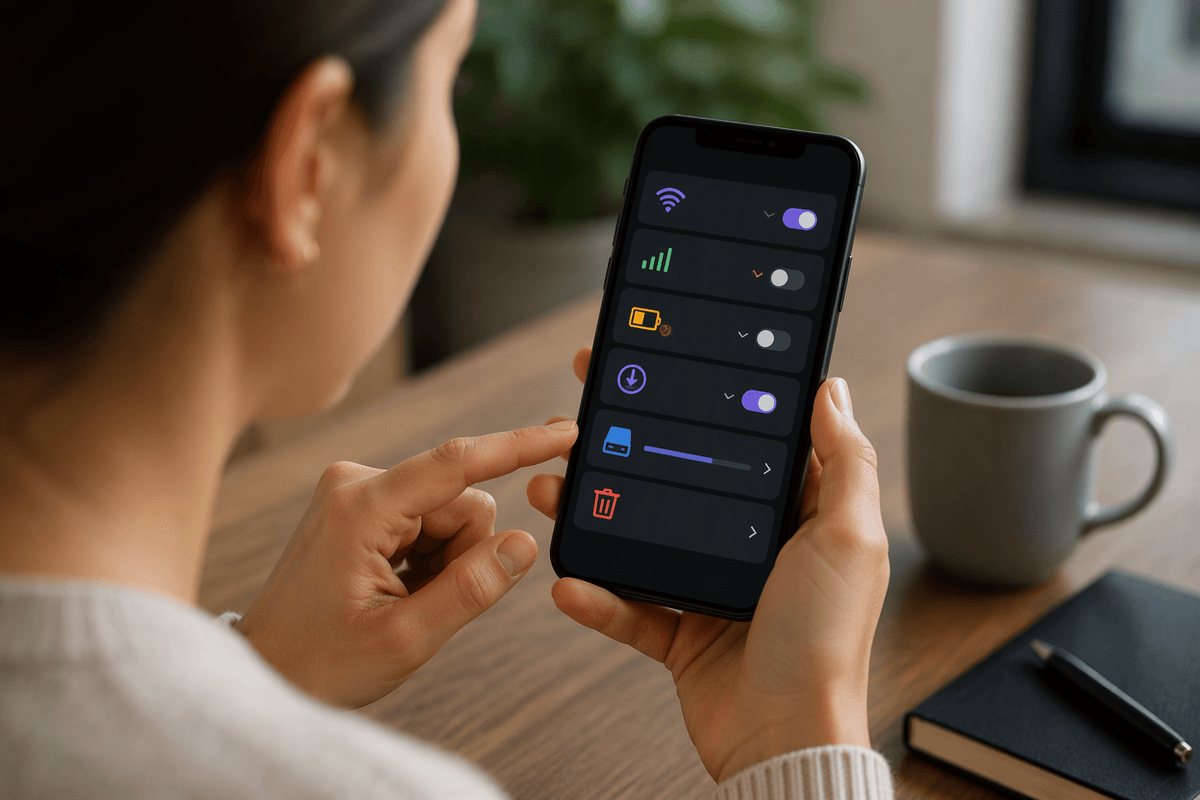
Podcast apps often follow download rules that are easy to overlook. Open the app’s settings and check whether downloads are limited to Wi-Fi, blocked on mobile data, or restricted when the battery is low. Look for options such as automatic downloads, download limits, storage cleanup, and “download latest episode only.” A show may also be set to stream rather than save episodes, even when other podcasts download normally.
Review the show’s individual settings as well as the app-wide rules. Some apps let you choose whether new episodes download automatically, remain available after playback, or are removed when marked as played. If an episode is queued but never starts, remove it from the queue and add it again after confirming these settings. Also check whether your account has reached a device, subscription, or download limit. Automatic cleanup can make an episode seem to have failed when it was downloaded and then removed. These rules are useful for controlling storage, but they can conflict with offline listening plans, especially when you need several older episodes available during travel.
When Only One Show or Episode Fails
If other shows download normally but one program or episode does not, check the item itself before changing more phone settings. Open the episode’s details and look for an error, missing download button, expiration notice, or message about regional availability. An episode may have been removed from the publisher’s feed, replaced with a corrected file, or made unavailable under the provider’s licensing rules. In those cases, repeated retries will not fix it.
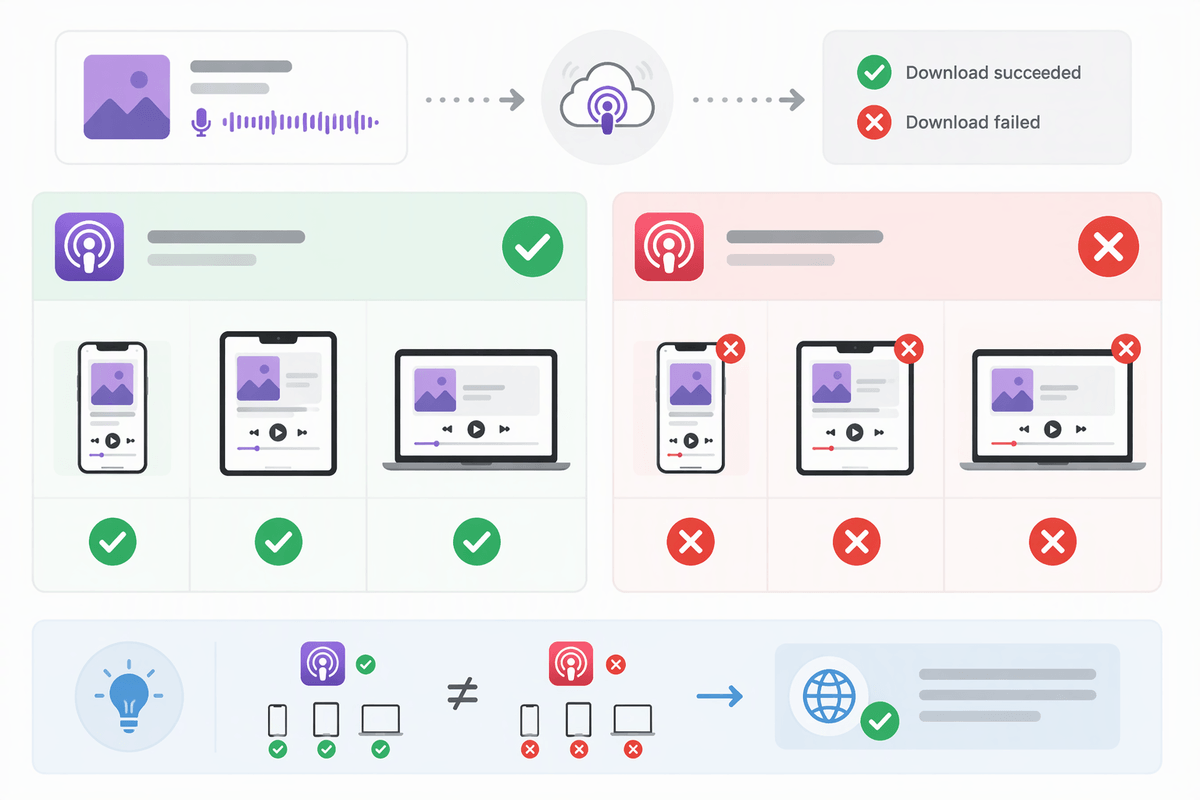
Remove the failed item from the queue, refresh the show’s episode list, and try downloading another episode from the same program. If newer episodes work, the problem is probably limited to the original file. If none of that show’s episodes work, unfollow and re-following the show may refresh its feed, though this can alter downloaded episodes or playback settings. Search for the program in another podcast app to compare results. When the same episode fails everywhere, contact the publisher or service provider; when it fails only in one app, update or reset that app before assuming the episode is unavailable.
Update, Reset, or Try Another App
When several shows fail to download after the connection, storage, and download rules look correct, update the podcast app and the phone’s operating system. Older app versions can lose compatibility with a service or mishandle downloads after a platform update. After installing updates, force-close the app, restart the phone, and try a small episode before retrying a long one.
If the problem continues, sign out and back in, or reset the app using its built-in troubleshooting option. On some phones, clearing the app’s cache can remove damaged temporary files without deleting account data. Be more cautious with “clear storage,” “reset app,” or reinstalling: these steps may erase downloaded episodes, playlists, and settings, so confirm that subscriptions and saved items are synchronized first. Reinstalling also consumes time and data, particularly if many episodes must be downloaded again.
Trying another reputable podcast app helps separate a phone or provider problem from an app-specific failure. If the same episode downloads elsewhere, keep using the alternative app or report the original app’s behavior. If it fails across apps and devices, the service or publisher likely needs to correct the file or access restriction.
A Reliable Offline Listening Routine
A reliable offline routine starts before you need it. Download episodes while connected to dependable Wi-Fi, then confirm that each file shows as completed rather than merely queued. Open one downloaded episode briefly with Wi-Fi and mobile data turned off; this verifies that the file is stored locally and playable. Keep enough free storage for new downloads, and review automatic cleanup so important episodes are not removed after playback.
Before travel or a long commute, download a small selection instead of relying on one file. Recheck the list after app updates or account changes, since settings can revert or downloads may disappear. If an episode still fails after testing another network, freeing space, reviewing rules, and trying another app, treat it as a provider or publisher issue and seek support rather than repeating the same download attempt.