When ChatGPT stalls, don’t refresh just yet
You type a prompt, hit Enter, and nothing happens—or you see the cursor/spinner sit there with no new text. The instinct is to refresh, but that’s the fastest way to lose an unsent prompt or break a chat that’s still trying to complete in the background. Give it 20–30 seconds, then try clicking “Stop generating” (if it’s visible) and wait a moment before doing anything else.
Before you touch refresh, copy your prompt (and any key text you don’t want to retype) into a notes app. If you were editing a long message, take the extra minute to save it—rewriting a detailed brief is the real cost of a rushed restart.
First, confirm it’s not an OpenAI outage
If the page looks frozen but your internet seems fine, assume for a moment it might not be you. OpenAI does have occasional partial outages where ChatGPT loads, but responses hang, fail, or arrive very slowly. The quickest check is the official status page (status.openai.com) in a separate tab or on your phone’s cellular connection. Look specifically for incidents affecting “ChatGPT” or “API,” and note whether the issue is “Investigating” versus “Monitoring” (which can mean things are improving but still unstable).
If the status page shows an active incident, stop troubleshooting your browser for now. Save your prompt text, wait 5–15 minutes, and try again once. Repeated refreshes and rapid retries can create more errors and duplicate sends, especially if the system is recovering. If status is green, move on to your connection and page state checks.
Check your connection and the page’s “stuck” state

Sometimes ChatGPT isn’t down and your browser isn’t broken—the page is just “half-connected.” A quick tell is whether other sites load normally while ChatGPT hangs on sending. If you’re on Wi‑Fi, toggle it off and on, or switch briefly to your phone hotspot or cellular to see if responses start moving again. Office networks, and hotel Wi‑Fi can also interfere; If that fixes it, you’ve found the constraint: you may need a different network for reliable use.
Also check whether the tab itself is stuck. If the input box accepts typing but the send button doesn’t react, or you see “Network error” / “Something went wrong,” stop and copy your unsent text again. Then try a hard reload only after you’ve saved your prompt. On desktop, opening the same chat in a new tab (right-click the chat in the sidebar) can recover a stuck session without wiping your current page state.
Rule out browser issues: cache, extensions, and cookies
One of the most common “it just won’t respond” causes is your browser silently getting in the way. Start with the lowest-risk test: open the same chat in a private/incognito window. If ChatGPT works there, your main window likely has a cookie/session glitch or an extension interfering. Go back to your normal window and temporarily disable extensions that touch pages or traffic (ad blockers, privacy/script blockers, antivirus web shields, grammar tools). Reload and try again after each change so you can pinpoint the culprit instead of turning everything off permanently.
If extensions aren’t it, clear site data for ChatGPT rather than nuking your whole browser. In your browser settings, remove cookies and cached files for chat.openai.com (or “OpenAI/ChatGPT”), then sign in again. The trade-off is practical: this can log you out and reset preferences, so copy any unsent prompt text first and expect a minute of re-login friction.
Try a smaller prompt when responses keep timing out
You’ll also see “stuck” behavior when the request is simply heavy: long prompts, lots of pasted text, or instructions that ask for multiple outputs at once. If you notice timeouts or partial replies, don’t keep resending the same giant message. Copy your prompt to notes, then reduce the load and retry.
A practical approach is to split one big ask into two or three smaller turns. Send the minimum context needed for the first step, then add the next chunk after you get a response. If you’re pasting a document, try sharing only the relevant excerpt (for example, 10–20 lines) and say what part you want help with. If you need a full rewrite or analysis, ask for an outline first, then request each section. The trade-off is time: you’ll do a bit more back-and-forth, but you’ll avoid repeated failures and you’ll keep progress even if one request stalls.
Account and session fixes that don’t lose your chat
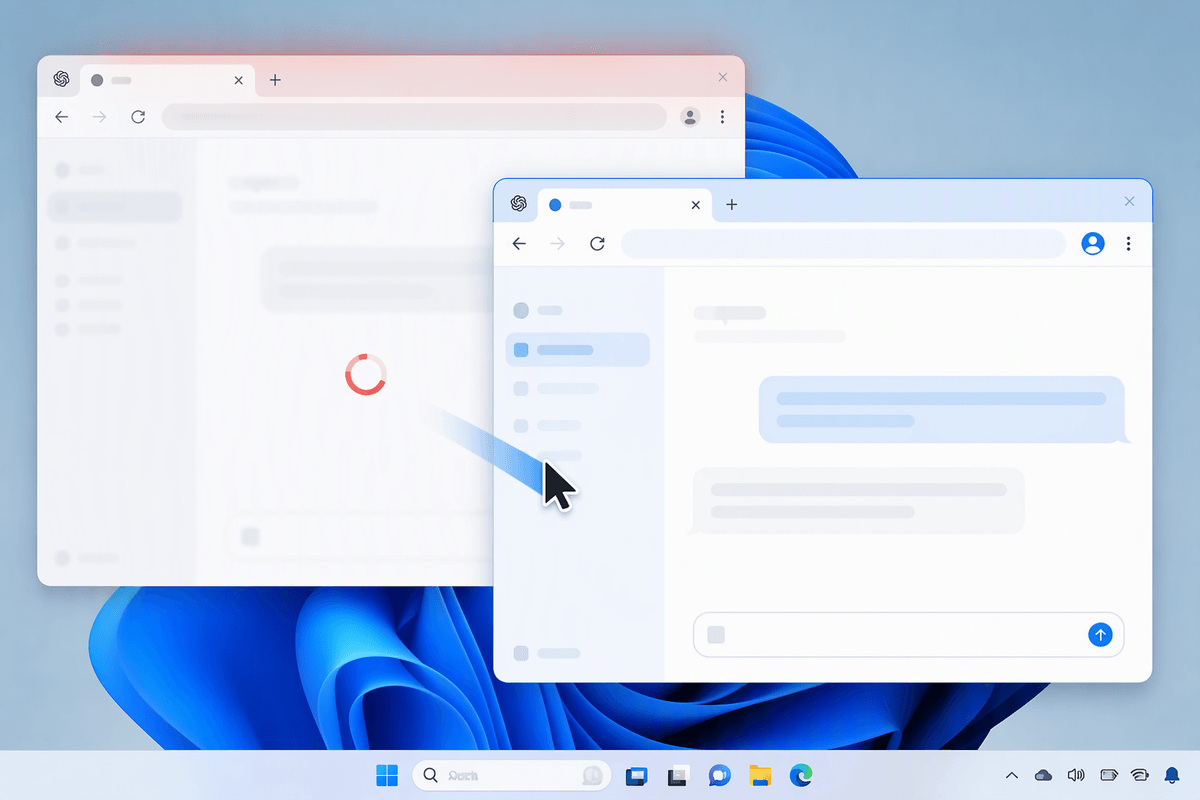
If ChatGPT loads but won’t send, or it keeps acting like you’re logged out in the middle of a conversation, treat it like a session problem before you wipe anything. First, duplicate your work: copy the unsent prompt, then open the same chat in a new tab (or open ChatGPT in a different browser profile). If the new tab works, your original tab is the one that’s stuck—close only that tab after you confirm your message is safe elsewhere.
If multiple tabs fail, sign out and sign back in rather than refreshing repeatedly. This often repairs an expired session token without deleting your chat history. The cost is that you can lose whatever is currently typed but unsent, so copy it first. If sign-out doesn’t appear or clicks don’t register, try a private/incognito window to log in fresh; once you’re in, your existing chats should still be there, and you can paste the saved prompt into the right thread.
When to restart, and how to restart safely
Sometimes a restart is the fastest fix—just not the first one. Do it when the tab won’t send anything across multiple chats, buttons stop responding, or you’ve already confirmed status is green and a private window works while your normal tab doesn’t. Restart safely by copying any unsent text first, then opening the same chat in a new tab or a different browser (or the mobile app) before closing the broken one. If you must refresh, use a hard reload only after your prompt is saved. The trade-off is re-login time and losing unsent drafts.