Why Your Quiz Results May Disappear
You may finish a quiz, see a loading screen, and still find no score or saved answers afterward. The most common reason is that the final submission did not reach the platform. A weak connection, closed tab, expired login session, or timed-out quiz can interrupt the process between answering the last question and recording the result.
Browser problems can also interfere, especially when pages are cached, scripts are blocked, or the device switches networks. In other cases, the result exists but is attached to a different account, course, or quiz attempt. Before retaking the quiz, check whether a confirmation message, email receipt, attempt history, or instructor record shows that your submission was accepted. That evidence may allow the result to be recovered without starting over.
Check Whether the Quiz Was Fully Submitted
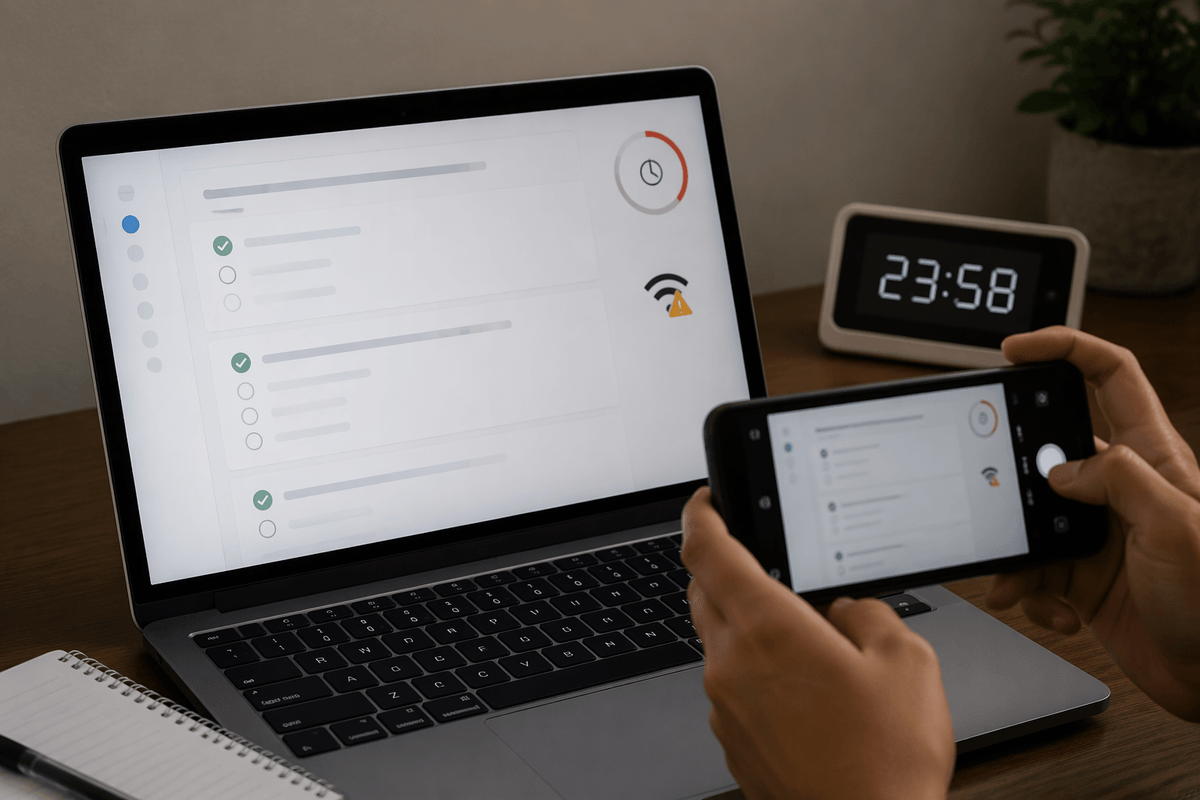
Start by looking for clear evidence that the platform accepted the attempt. Check for a confirmation message, submission timestamp, score page, email receipt, or updated attempt history. Some systems return you to the course dashboard without displaying the score, so open the quiz again and look for labels such as “submitted,” “completed,” or “review attempt.” Do not immediately select “retake” if an earlier attempt is listed; doing so may replace or complicate the record.
If no confirmation appears, return to the quiz only long enough to see whether your answers are still saved. A partially completed attempt may be stored as a draft, especially if the quiz allows you to resume later. Also check whether the timer reached zero or whether the page showed an error after you clicked the final button. In timed quizzes, the system may submit automatically, but a connection failure can prevent that handoff. Save screenshots of any messages and note the approximate submission time before contacting the instructor or platform support.
Test Your Connection Before Retaking It
Before attempting the quiz again, check whether your connection was stable when you submitted it. A page that appears finished may still be waiting to send the final answers. Open another website or run a quick connection test, then compare the result with what happened during the quiz. If other pages were slow, disconnected, or repeatedly refreshed, the submission may not have reached the server.
Use a reliable network for any recovery attempt. Move closer to the router, pause large downloads or video calls, and avoid switching between Wi-Fi and mobile data while the quiz is open. If possible, use a wired connection or a trusted network instead of public Wi-Fi. Do not refresh the quiz repeatedly, since that can close an active session or create conflicting attempts.
Connection quality alone cannot prove that your answers were lost. The platform may have received the submission before your screen stopped responding. Check the attempt history again after reconnecting, and contact the instructor or support team before retaking the quiz if the record remains unclear.
Rule Out Browser and Device Problems

A quiz can fail to save even when your internet connection looks normal. An outdated page, blocked script, full browser cache, or privacy extension may prevent the final answers from being processed. Open the quiz in a private window or a different browser, disable extensions that block scripts or pop-ups, and sign in again. If the platform works normally there, the original browser was likely part of the problem.
Device changes can matter too. Switching from a phone to a laptop, locking the screen, closing the app, or allowing the device to sleep may end the quiz session or interrupt autosave. Restart the device, update the browser, and make sure the system date and time are set automatically. Avoid using the browser’s back button while checking the attempt record. If the result appears on another device, save a screenshot and do not submit a duplicate attempt until you know which record is official. Clearing cookies may help, but it can also sign you out and remove locally stored draft data, so try less disruptive steps first.
Confirm Your Account and Access Details
If the quiz still does not appear, confirm that you are signed in to the account that originally opened it. Students often have separate personal, school, work, or guest accounts, and a browser may switch between them without making the change obvious. Compare the email address, username, profile name, and course enrollment shown on the platform. Then open the course from its normal dashboard rather than from an old bookmark or shared quiz link.
Access details can also affect what you see after submission. Check whether you entered the correct course section, selected the right quiz version, or used a temporary guest session that does not preserve results. If your password was reset, enrollment changed, or access expired, the attempt may be stored under the original account or course record. Avoid creating a second account or retaking the quiz until an instructor or administrator checks the records. Provide your name, account email, course, quiz title, approximate completion time, and any screenshot or confirmation message. Support may be able to locate the attempt even when it is missing from your dashboard.
When Platform Settings or Support Are Responsible
Sometimes the quiz is recorded correctly but hidden by platform settings. An instructor may restrict score visibility, delay release until a deadline, allow only one attempt, or configure the quiz to show completion without displaying answers. Course dates, section permissions, and grading settings can also make a submitted attempt appear missing. Check the course announcements, grading page, and quiz instructions for a release date or access restriction. If classmates can see results but you cannot, the issue is more likely tied to your account or enrollment than to the quiz itself.
Contact the instructor or platform support team when the attempt history is incomplete, the quiz locked after submission, or the system shows conflicting statuses. Ask them to verify whether the server received your attempt, whether it was marked incomplete, and whether a score can be restored or manually recorded. Include your account email, course and quiz names, approximate completion time, device and browser, and screenshots of errors. Support may recover a server-side record, but it may not restore answers that never reached the platform. Do not retake the quiz unless they confirm that the original attempt cannot be recovered and explain which attempt will count.
Prevent Lost Results on the Next Attempt
Before starting another quiz, use a stable network, updated browser, and device that will not sleep or switch connections. Close unnecessary tabs and pause downloads or video calls. Sign in through the course dashboard, confirm the correct account and quiz, and check the time limit before answering. If the platform offers autosave, wait for its confirmation after important sections rather than relying on the final screen alone.
Submit a few minutes before the deadline so a slow connection does not remove your margin for error. Wait for a confirmation page, then save a screenshot showing the completion status or score. Record the submission time and keep any email receipt. These steps cannot prevent every server or platform failure, but they create evidence that helps support locate the attempt and reduces the risk of an unnecessary retake.