Why Your Thermostat Ignores the Schedule
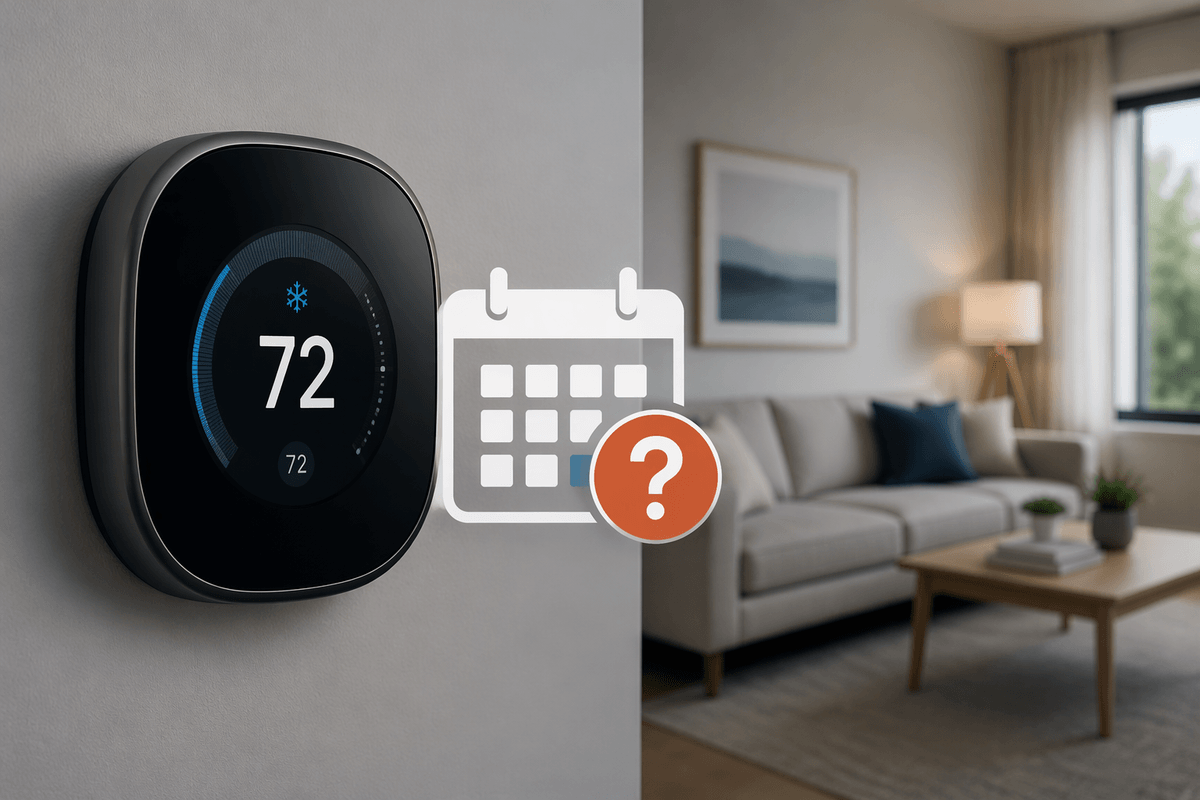
You set the thermostat to lower the temperature at night, yet the house stays warm—or the setting changes hours before the scheduled time. This usually does not mean the thermostat is broken. A temporary temperature hold, an Away or Sleep routine, geofencing, or an adjustment made in the mobile app can take priority over the regular schedule.
The thermostat may also be following a different schedule than the one you edited, using a room sensor instead of its built-in sensor, or responding to a learning feature that adjusts temperatures automatically. Connectivity problems can make app changes appear delayed, while HVAC limits may prevent the system from reaching the target quickly. Start by checking the active mode, holds, routines, sensor selection, and recent app changes before resetting the device.
Check the Active Mode and Temperature Hold
Start with the thermostat’s current mode before changing the schedule. A system set to Heat, Cool, Auto, or Off may respond differently to the same programmed temperature. For example, a cooling schedule cannot lower the room temperature while the thermostat is in Heat mode, and Auto mode may switch between heating and cooling only within its configured range. Confirm that the mode matches the season and that the displayed indoor temperature is plausible.
Then look for a temperature hold or manual override. Many thermostats show labels such as “Hold,” “Until,” “Temporary,” or “Indefinite” when a setting has been changed from the schedule. Cancel the hold and choose the option that resumes the programmed schedule. Some models offer a temporary override that ends at the next scheduled change, while others keep the new temperature until you remove it. If the thermostat keeps restoring the hold, check whether the same command is being sent from a phone, voice assistant, or another household member’s account. Make one change at the thermostat itself, wait through the next schedule transition, and note whether the setting changes again.
Review Away, Sleep, and Geofencing Rules
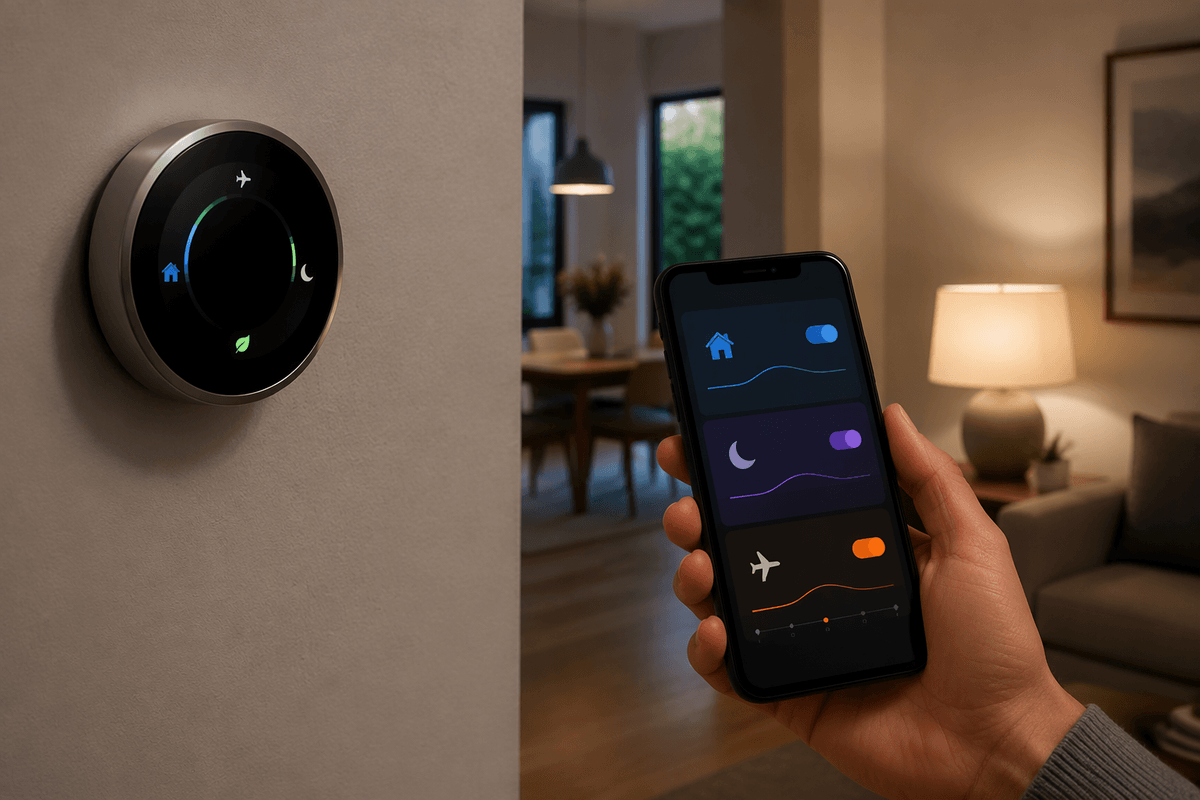
Next, check whether an Away, Sleep, or vacation routine is active. These settings can replace the normal schedule for a defined period, often with energy-saving temperatures that look like unexplained changes. Open the thermostat or app and review the current routine, its start and end times, and the days it applies. A routine may have been enabled manually, triggered by a calendar, or left active after a trip. Cancel it or change its temperature targets before editing the regular schedule again.
Geofencing can create the same confusion. When location services detect that everyone has left home, the thermostat may switch to Away mode; when someone returns, it may restore a comfort setting. Check which phones or accounts are included, whether location permissions are enabled, and what distance or arrival rule triggers the change. Shared homes can be especially difficult because one person’s phone may keep the system in Home mode while another person’s device reports that the house is empty. Geofencing also depends on phone battery, network access, and accurate location data, so it may not react at the exact moment someone leaves or arrives.
Confirm Which Sensor Controls the Temperature
If the schedule appears correct but the thermostat still changes at unexpected times, check which sensor is controlling the temperature. A thermostat mounted near a drafty door, sunny window, kitchen, or supply vent may read a different temperature from the room where you spend most of your time. Smart thermostats can also use remote room sensors, averaging several readings or prioritizing one sensor during a specific schedule period.
Open the sensor settings and identify which device is active for the current mode and time of day. Some systems use the thermostat’s built-in sensor during the day and a bedroom sensor at night, while others let you select a room for each schedule block. Make sure the selected sensor is online, has a reasonable reading, and is not sitting in direct sunlight or near a heat source. If the app shows a sensor as disconnected, the thermostat may fall back to another reading. Test the schedule with one known-good sensor selected. Keep in mind that a remote sensor measures its own location; choosing a cooler or warmer room can make the HVAC run longer even when the rest of the home already feels comfortable.
Test Connectivity, Learning, and App Changes
If the schedule looks correct and the sensor is behaving normally, check whether the thermostat is receiving recent commands from the app or another connected service. A weak Wi-Fi connection can delay an app change, leaving the thermostat temporarily on an older setting and then applying the command later. Open the app and compare its displayed mode, temperature, and schedule with the thermostat itself. If they disagree, force a refresh, confirm the thermostat is online, and avoid making repeated changes from several devices while the connection is unstable.
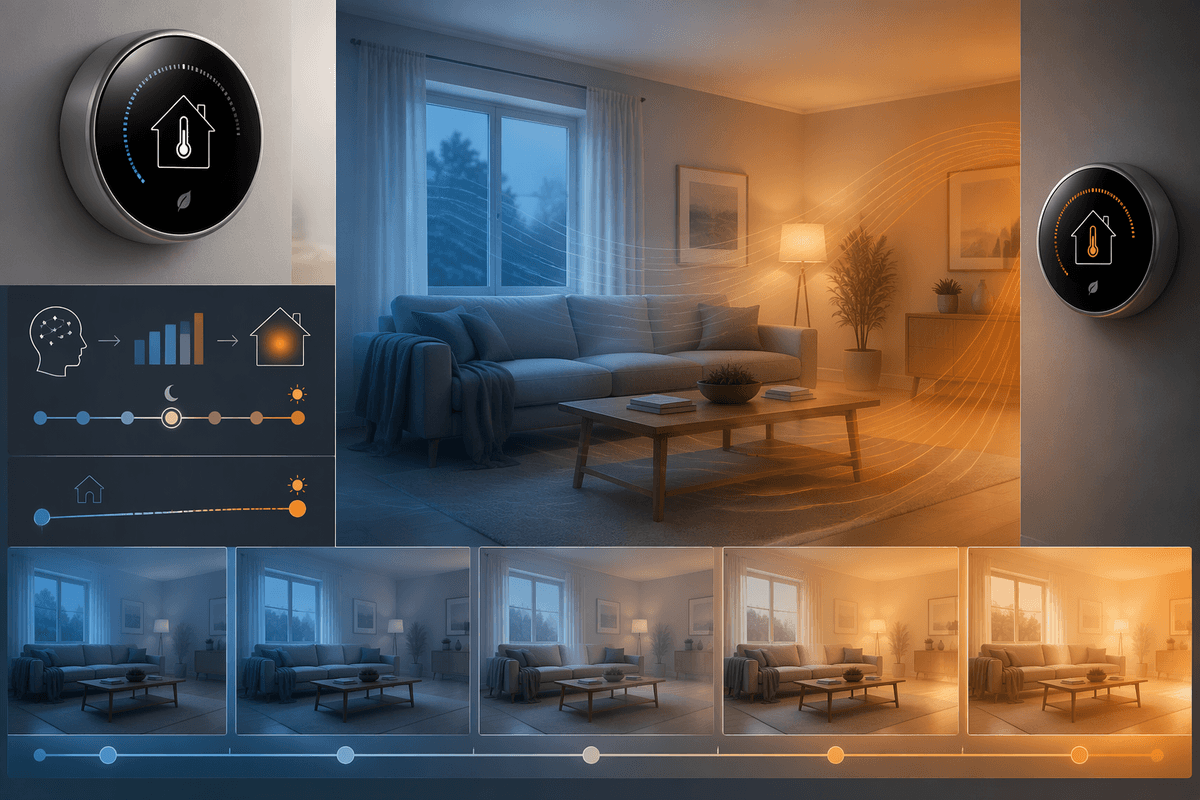
Also review learning, adaptive recovery, and smart scheduling features. These tools may start heating or cooling before the scheduled time so the home reaches the target temperature at the planned hour. Disable the feature temporarily if you want to test the basic schedule without adjustments. Check the activity history for commands from the app, voice assistant, utility program, or another user account. App updates can also change where holds and automations are configured. Record the thermostat’s behavior through one complete schedule cycle after making a single change. If it still changes settings without an entry in the history, connectivity or device software may be failing rather than the schedule itself.
Separate Thermostat Problems From HVAC Limits
When the thermostat shows the scheduled setting but the room does not reach it, the limitation may be in the HVAC system rather than the schedule. Check whether the equipment is actually running when there is a demand for heating or cooling. Listen for the indoor blower, check whether the outdoor unit starts during cooling, and look for a furnace, heat-pump, or equipment fault light. A clogged filter, blocked vent, closed damper, frozen coil, low airflow, or undersized system can make the thermostat appear ineffective. In mild weather, the system may also run in short cycles because the temperature changes slowly.
Compare the thermostat’s displayed temperature with a separate thermometer placed nearby, away from sunlight and supply vents. A small difference may be normal, but a large or persistent gap points to a sensor, wiring, or equipment issue. Do not repeatedly lower or raise the setting to force faster operation; that usually cannot overcome an HVAC capacity problem and may increase wear. If the system runs continuously, shuts down unexpectedly, makes unusual sounds, or cannot approach the target after a reasonable period, document the mode, readings, and run behavior before contacting the landlord or an HVAC technician.
Reset Carefully and Know When to Call
Resetting can clear a temporary software problem, but it should be the last troubleshooting step, not the first. Before using a reset option, photograph the current schedule, note sensor assignments, and record Wi-Fi, equipment, and account settings you may need to restore. Prefer a restart or power cycle if the thermostat offers one; a factory reset can erase schedules, routines, calibration choices, and connected devices. After restarting, change only one setting and observe the next complete schedule transition before rebuilding automations.
Call the landlord, installer, or HVAC professional when wiring, breakers, refrigerant, gas equipment, or repeated system shutdowns may be involved. Renters should not remove a thermostat from its base or alter wiring without permission. Provide the schedule, mode, sensor readings, activity history, and a description of what changed and when. That record helps separate a settings problem from a failing thermostat or equipment fault and usually prevents unnecessary resets or repeat service visits.