Why Does Audio Stop When the Screen Locks?
It is frustrating when a meditation or sleep session works normally until you lock your phone, then stops a few seconds later. In most cases, the screen itself is not the cause. Locking the phone changes how the operating system manages background activity, battery use, audio focus, and network access.
The interruption usually comes from one of four places: the app may not support locked-screen playback, the phone may restrict its background activity, another app may take control of audio, or streaming may lose access to the network. Downloaded sessions often continue more reliably because they do not depend on an active connection. The practical goal is to identify whether the failure follows the app, the phone’s power settings, or the way the meditation is being played.
The Main Causes Behind Screen-Off Playback
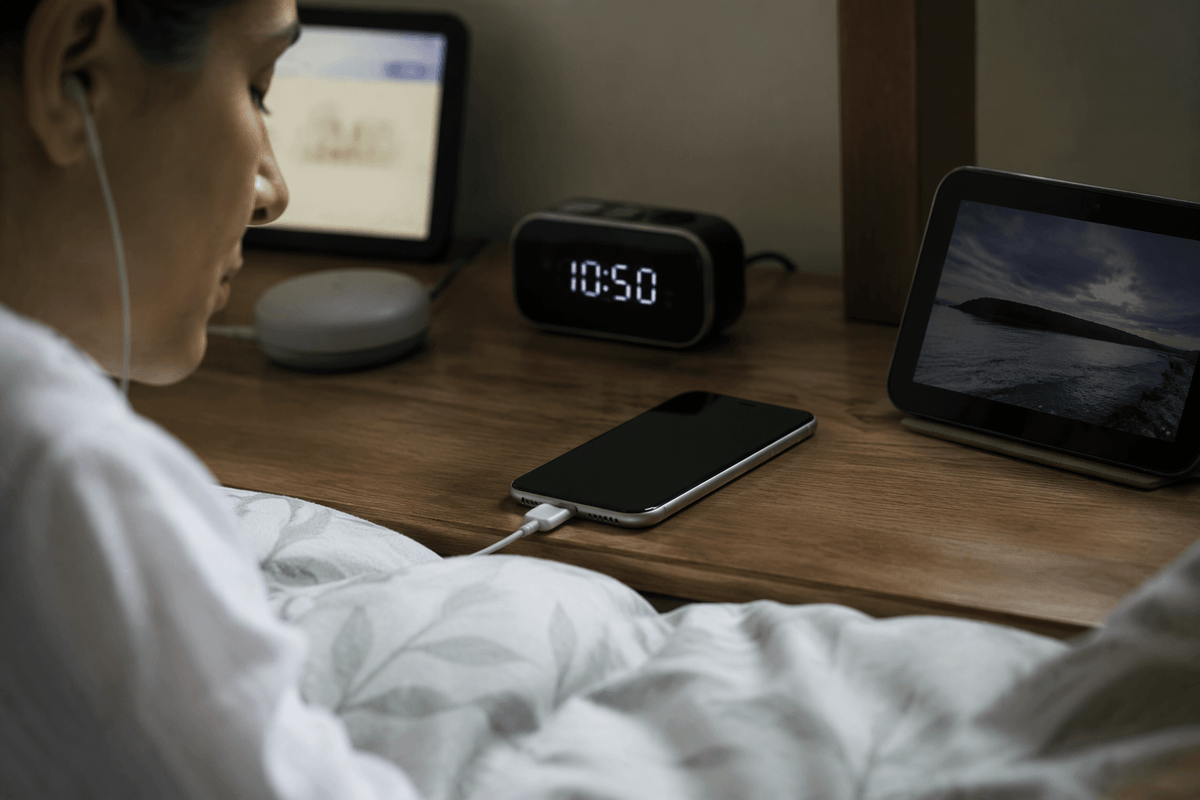
A common pattern is that playback stops only after the screen has been off for a short time. That usually points to a background restriction rather than a problem with the audio file. Phones may pause apps that use battery, mobile data, or processing power when they are no longer visible. Battery-saver modes and adaptive power settings can make this more aggressive, especially during a long sleep track.
The app itself may also be part of the problem. Some meditation apps support background audio only for downloaded sessions, while others require a subscription, an active account, or a specific playback mode. Streaming introduces another possible failure: a weak Wi-Fi or cellular connection can interrupt the session after the screen locks. Audio focus matters too. An alarm, navigation prompt, video, or another media app may temporarily take control and pause the meditation.
These causes can look identical from the listener’s perspective, but the timing provides a useful clue. Immediate stoppage suggests app support or audio focus; a delay of several minutes more often indicates battery management, network loss, or the phone closing the app in the background.
Is Your Phone Restricting the App?
When playback stops after a predictable delay, check whether the phone is limiting the meditation app in the background. Open the app’s battery or power settings and look for options such as “Restricted,” “Optimized,” or “Allow background activity.” Changing the app to an unrestricted setting can help, particularly for long sleep tracks, but it may use more battery. On some phones, you may also need to allow background mobile data, remove the app from a sleeping-app list, or disable battery saver while listening.
Permission settings can matter as well. Confirm that the app is allowed to send notifications, use data when the screen is off, and access any required audio or Bluetooth controls. If the app has its own setting for background playback, enable that too. Test one change at a time, then lock the screen and wait several minutes. If downloaded audio continues but streamed audio stops, focus on network and data restrictions. If every session stops despite relaxed phone settings, the app may simply lack reliable locked-screen support.
Check Audio, Lock Screen, and Focus Settings
When the app is allowed to run in the background but playback still stops, check the phone’s audio and lock-screen controls. Start with the media volume rather than the ringtone volume, then confirm that Bluetooth headphones or a speaker have not disconnected. If the meditation app appears in the lock-screen media controls, the phone is usually recognizing it as an active audio session. If those controls disappear when the screen locks, another setting or the app may be ending playback.
Focus, Do Not Disturb, and bedtime modes can also change how audio behaves. They normally silence alerts rather than stop media, but some devices include settings that pause background activity or limit selected apps during scheduled periods. Temporarily disable these modes and test the same session. Also check whether an alarm, navigation app, video, or voice assistant is taking audio focus. A brief interruption may pause playback, and some meditation apps do not resume automatically.
These checks are quick, but they are not universal: menu names vary by phone, and disabling focus or power controls may increase notifications and battery use.
When Downloads and Streaming Behave Differently
A useful test is to play the same meditation in both downloaded and streamed form. If the download continues after the screen locks but streaming stops, the phone is probably interrupting network access rather than audio playback. Check whether the app can use background Wi-Fi or cellular data, and avoid testing in a place with a weak signal. Data-saver modes, unstable Bluetooth connections, and switching between Wi-Fi and mobile data can all interrupt a stream.
If both versions stop, the problem is more likely to involve battery restrictions, audio focus, or the app’s background support. If only one particular download fails, remove it and download it again; an incomplete file can behave differently from a healthy one. Remember that downloads use storage space and may not include newly updated content, while streaming depends on a reliable connection and may consume mobile data. For overnight use, a verified download is usually the safer choice, provided the app permits locked-screen playback.
A Troubleshooting Order That Saves Time
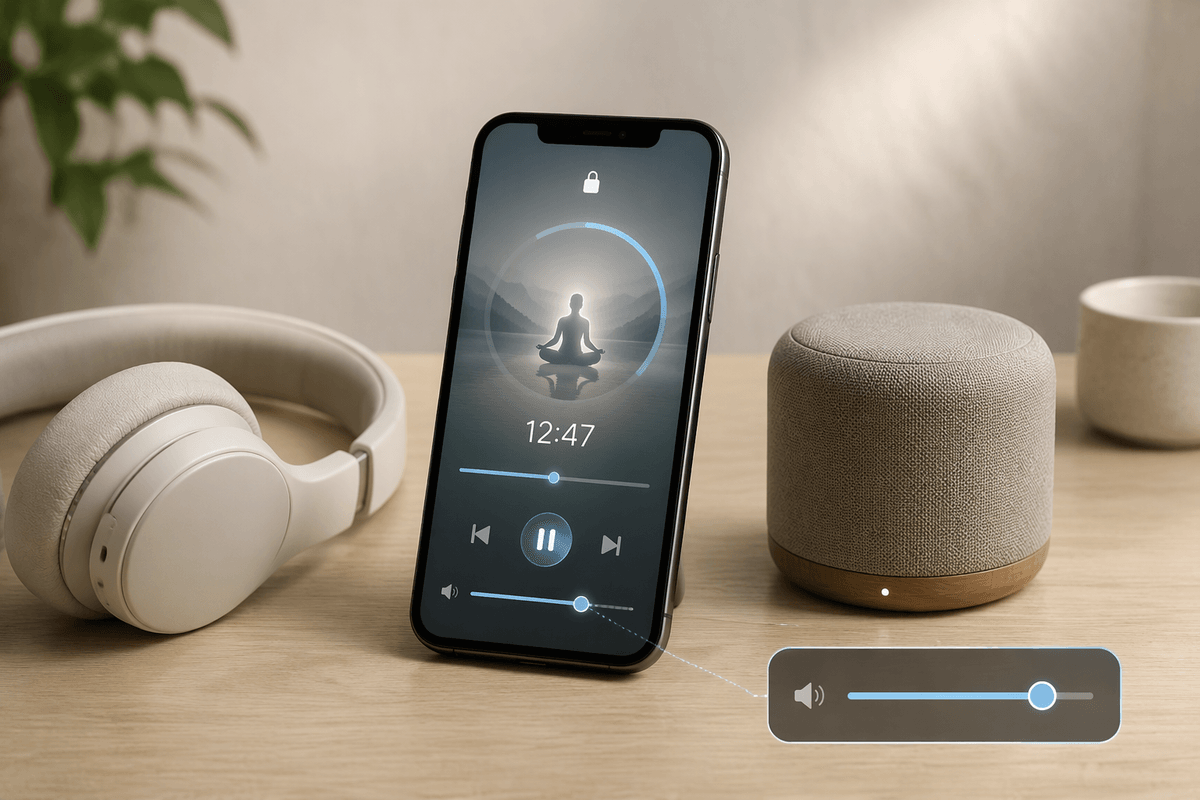
When troubleshooting, change one variable at a time and use a short, repeatable test. First, play a downloaded meditation, connect the phone to its usual headphones or speaker, lock the screen, and wait at least five minutes. If it stops immediately, check the app’s background-playback support and audio focus. If it stops after a delay, inspect battery restrictions, sleeping-app lists, and background data settings. This order prevents you from changing several unrelated controls and losing track of what fixed the problem.
Next, repeat the test with streaming and with the phone’s battery-saver, Focus, or bedtime mode temporarily disabled. Note whether the lock-screen media controls remain visible and whether another app interrupts the session. Restart the phone only after checking these settings; a restart can clear a temporary audio or Bluetooth fault, but it will not correct a permanent restriction. If downloaded audio works while streaming fails, use downloads for longer sessions and investigate network access later. If neither works after the app is unrestricted and no other audio is competing, update or reinstall the app, then test another meditation service if possible. That comparison helps separate a phone setting from a limitation or bug in the original app.
How to Keep Meditation Playing Reliably
For the most reliable overnight playback, prepare the session before you lock the phone. Prefer a downloaded meditation, confirm that it plays with the screen off, connect your headphones or speaker, and keep the app outside the phone’s restricted or sleeping-app list. Disable battery saver during the session if necessary, but remember that this may reduce battery life.
Use a short test before relying on the setup for sleep. Lock the screen for five to ten minutes and check that audio continues, the media controls remain available, and no alarm or other app interrupts playback. If the problem returns only with streaming, use downloads or improve the connection. If every session still stops after these checks, the limitation may belong to the app itself rather than your phone.